

Broadcast Software Integration
ScoreBird + Hudl
Native IntegrationHudl is the leading video analysis and streaming platform for sports teams at every level, with Hudl Replay and Focus Camera providing automated multi-angle capture for schools and clubs. ScoreBird integrates with Hudl via BlueFrame Technology — Hudl's production truck and Focus Camera infrastructure — so NeST delivers live scoreboard data that appears as a live score overlay on your Hudl stream.
How It Works
Production Truck & Focus Camera integration via BlueFrame Technology
NeST connects to your scoreboard and sends live data into the Hudl BlueFrame production pipeline
Live score overlay appears on Hudl streams without a dedicated graphics operator
Works with Hudl Focus automated cameras and full Hudl Replay production setups
Real-time score, clock, and period data — no manual entry between plays
Trusted by thousands of schools already using Hudl for video and streaming
Setup Guide
Hudl Setup
Hudl Integration Setup
Connect ScoreBird to Hudl Production Truck (BlueFrame) to display live score overlays on your broadcasts. Once configured, your ScoreBird scores update automatically in real time — no manual entry required.
For more background on the partnership, see the official announcement.
Requirements
- Hudl Production Truck with BlueFrame software installed
- A ScoreBird account with an active NeST device
- Your 5-digit NeST ID (found in the ScoreBird Portal)
Initial Configuration
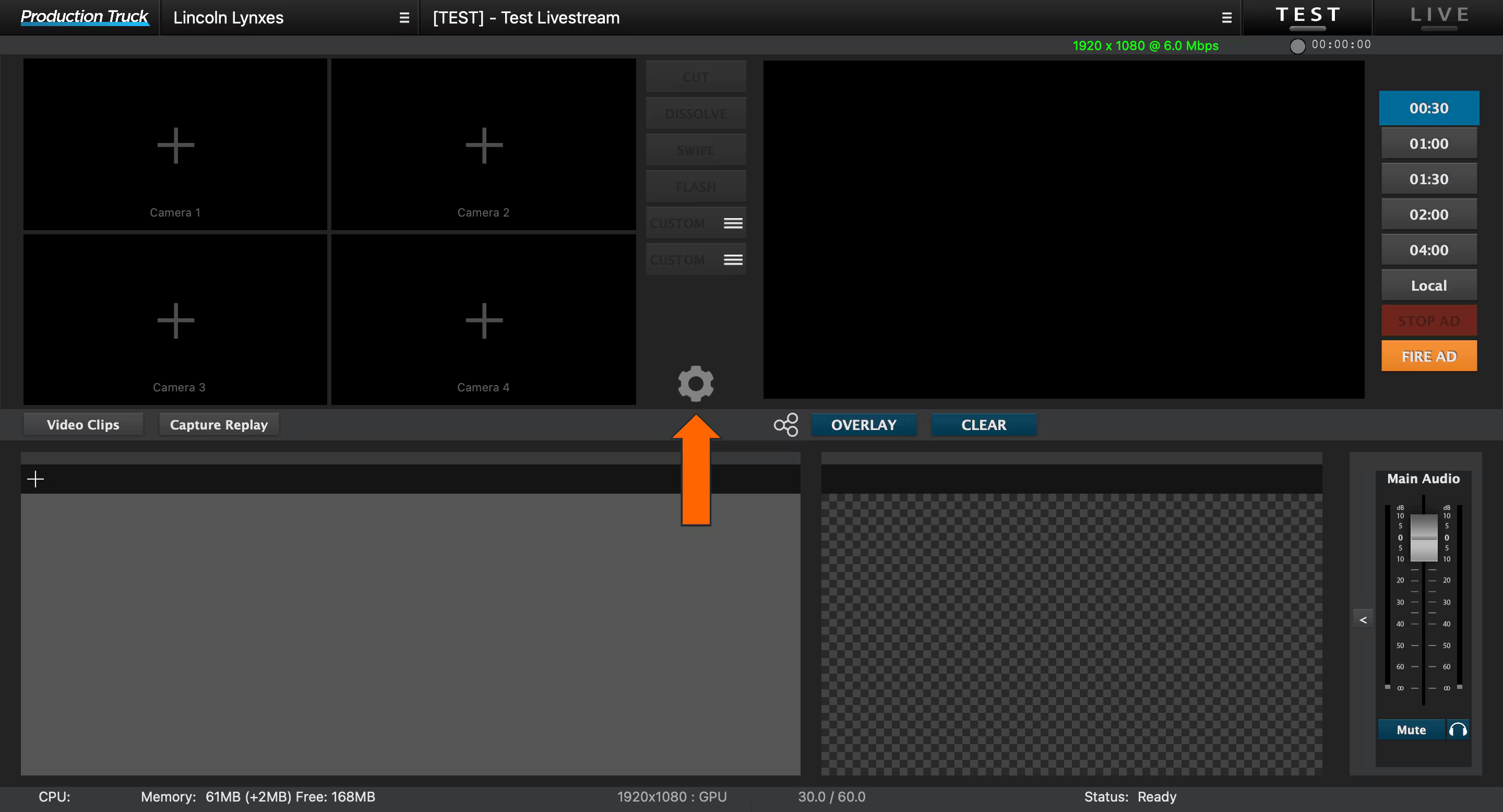
Step 1: Open Settings
Click the gear icon in the top-right corner of the BlueFrame interface to open the Settings panel.
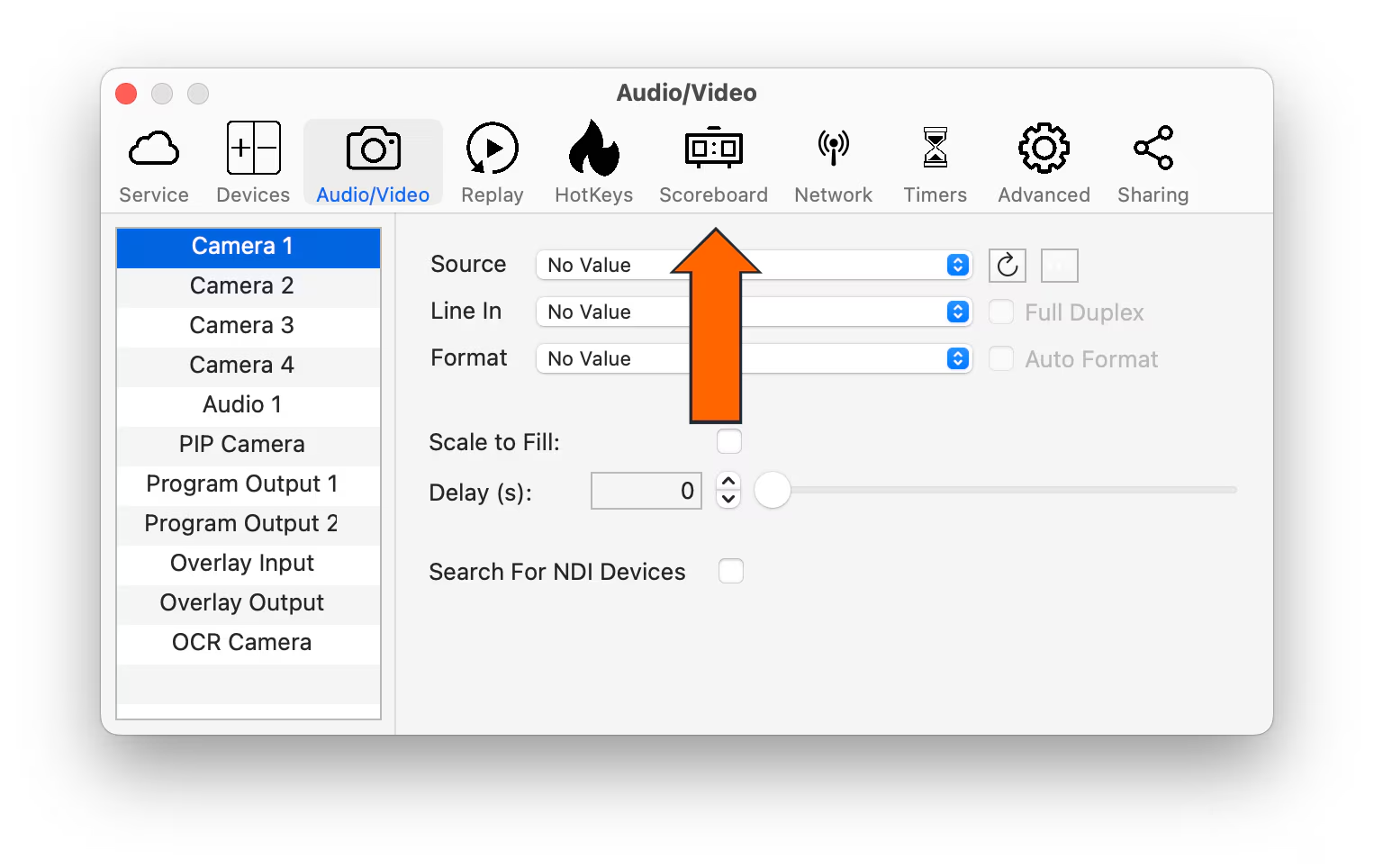
Step 2: Navigate to the Scoreboard Tab
Inside Settings, select the Scoreboard tab.
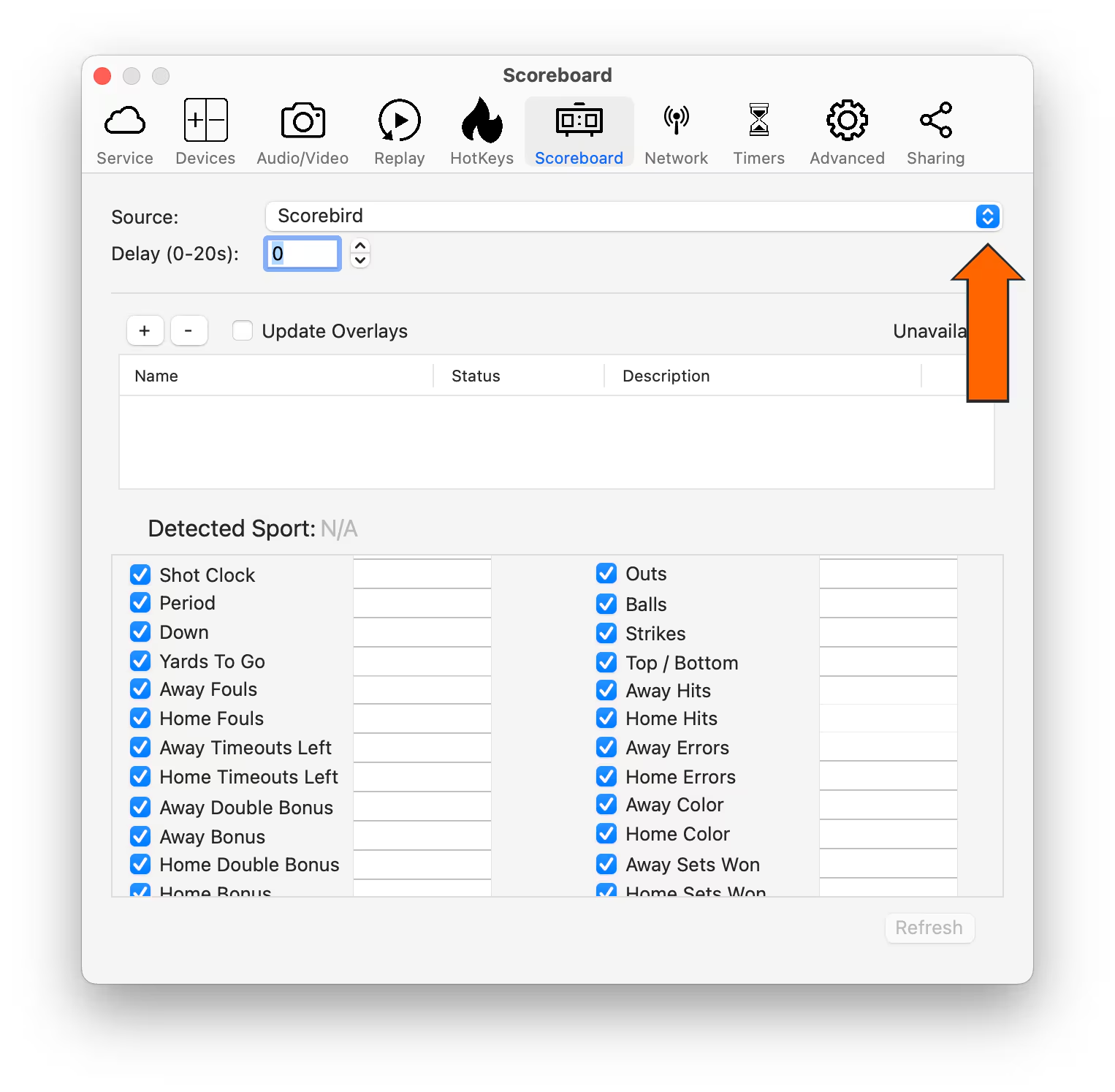
Step 3: Select "Scorebird" as the Source
From the scoreboard source dropdown, choose Scorebird.
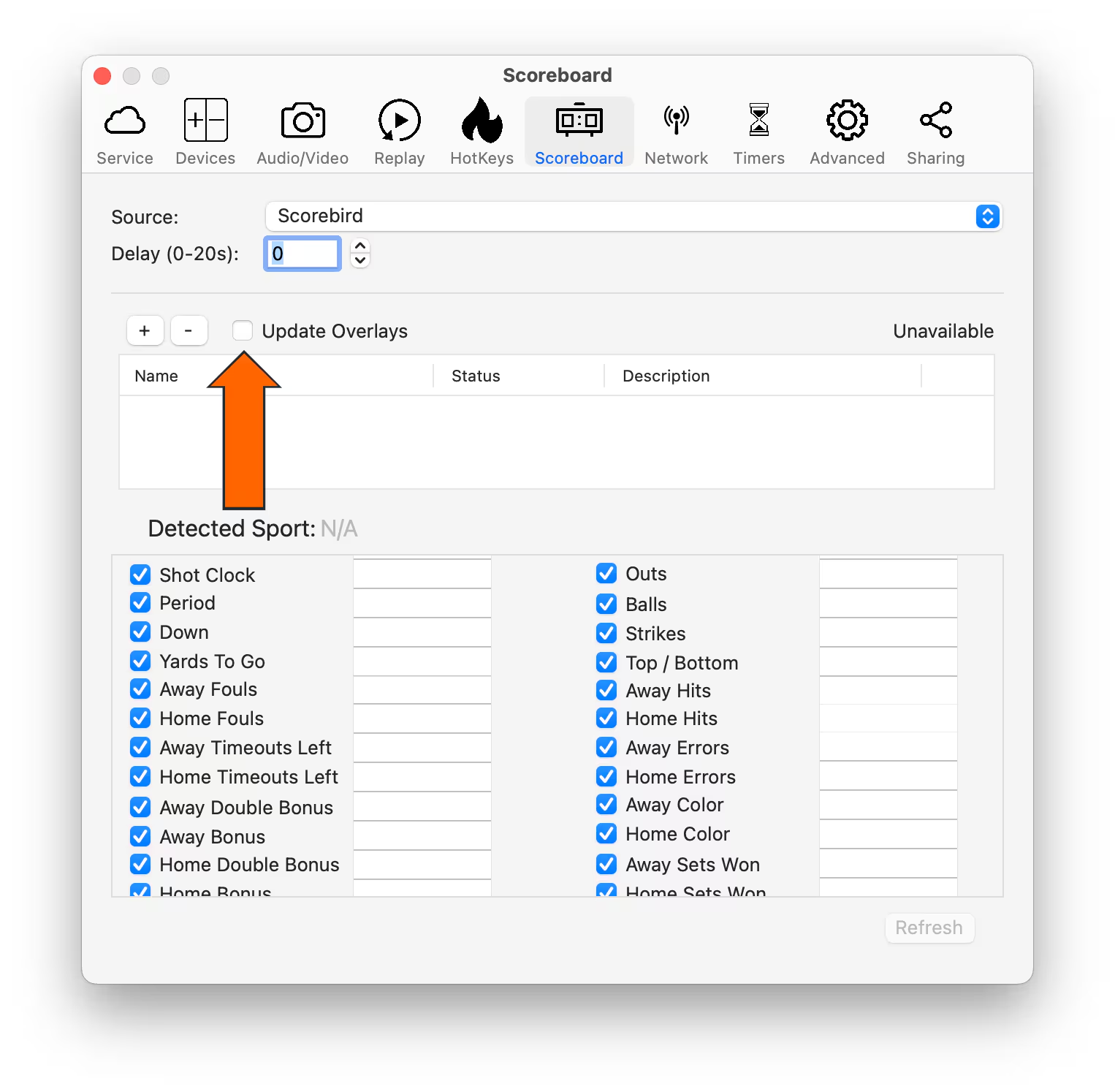
Step 4: Enable "Update Overlays"
Toggle on Update Overlays so that score changes from ScoreBird push to your graphics automatically.
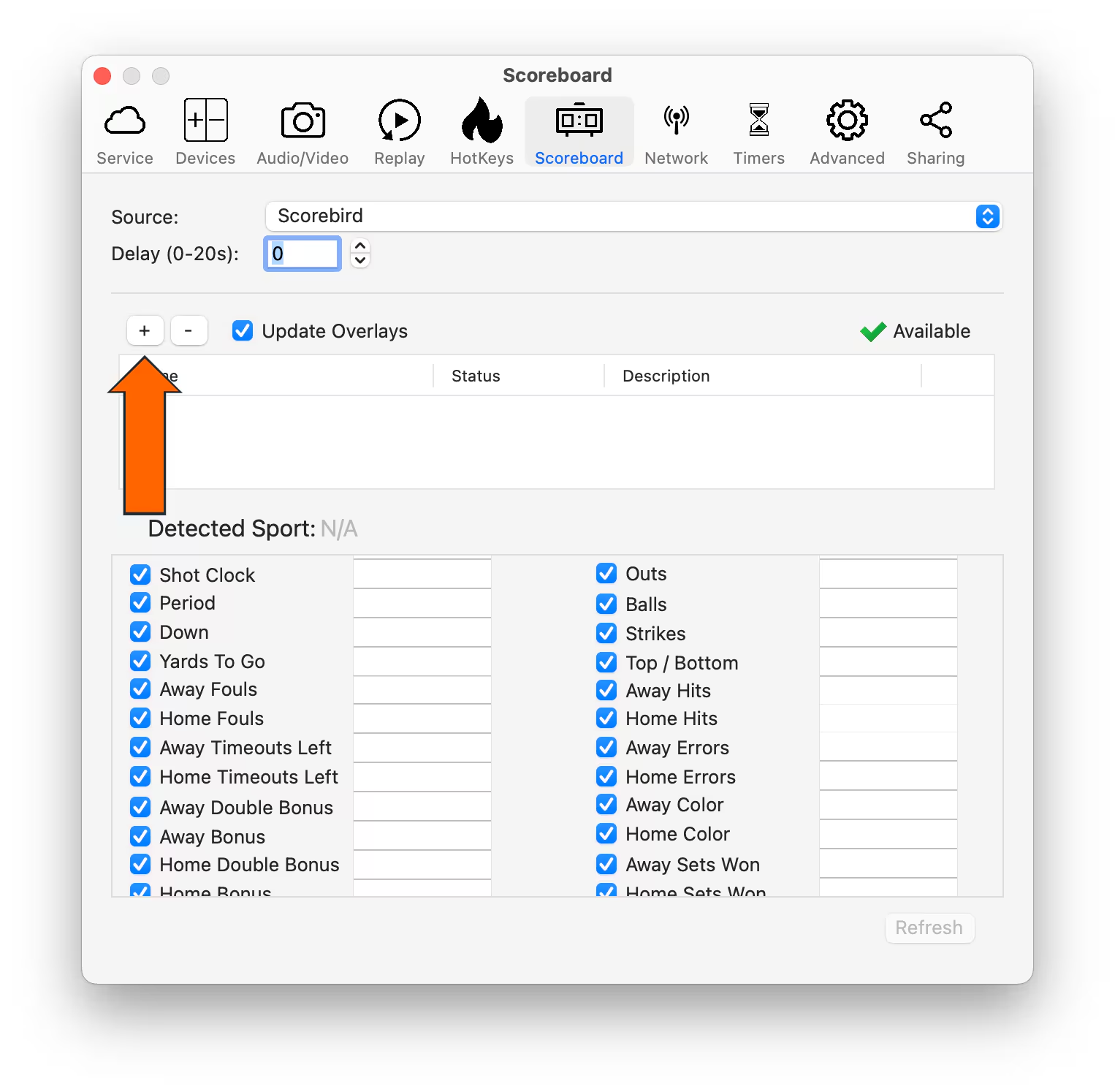
Step 5: Add a NeST Device
Click the "+" button to add a new NeST device connection.
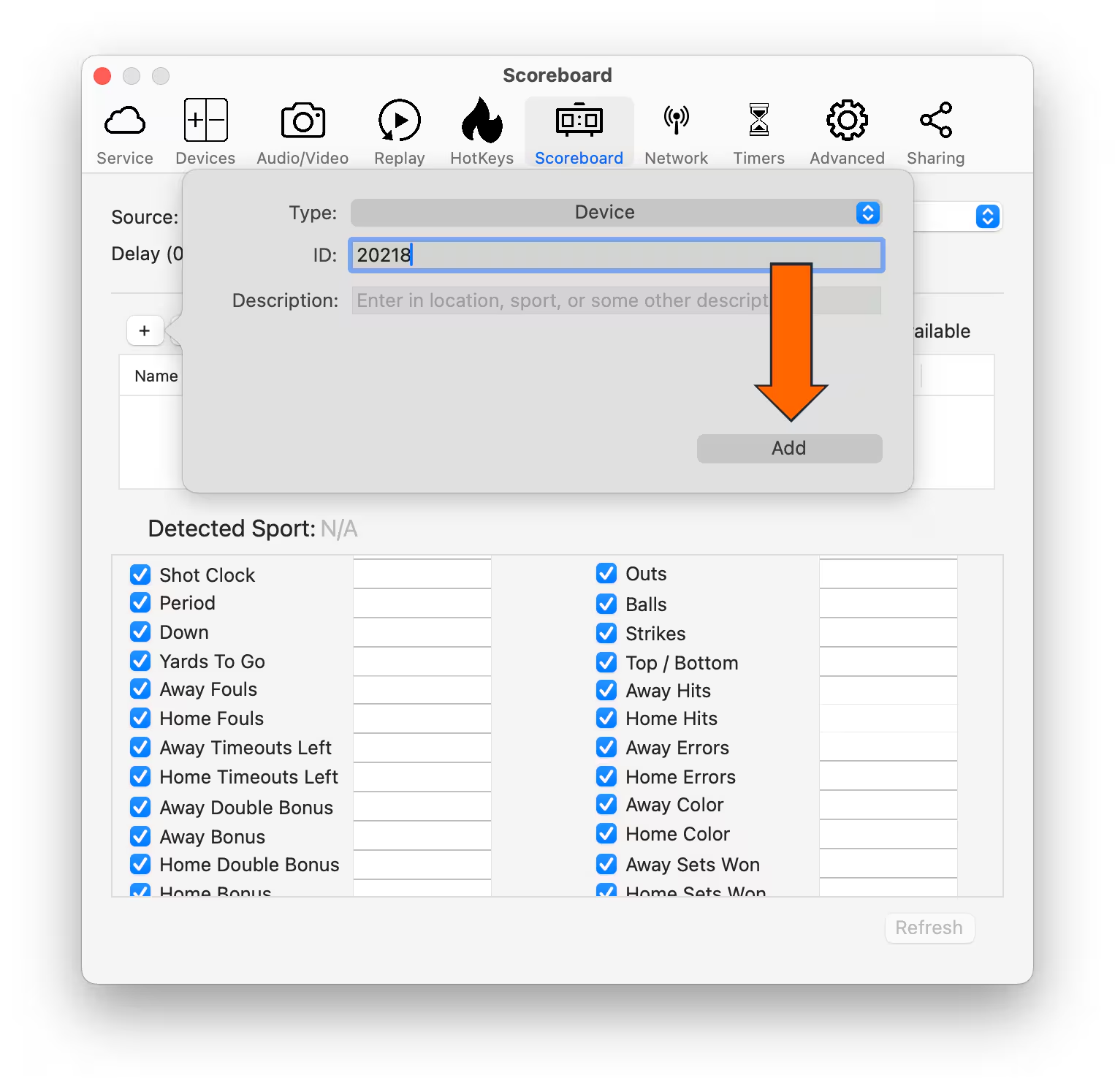
Step 6: Enter Your NeST ID
Type your 5-digit NeST ID in the field provided and confirm.
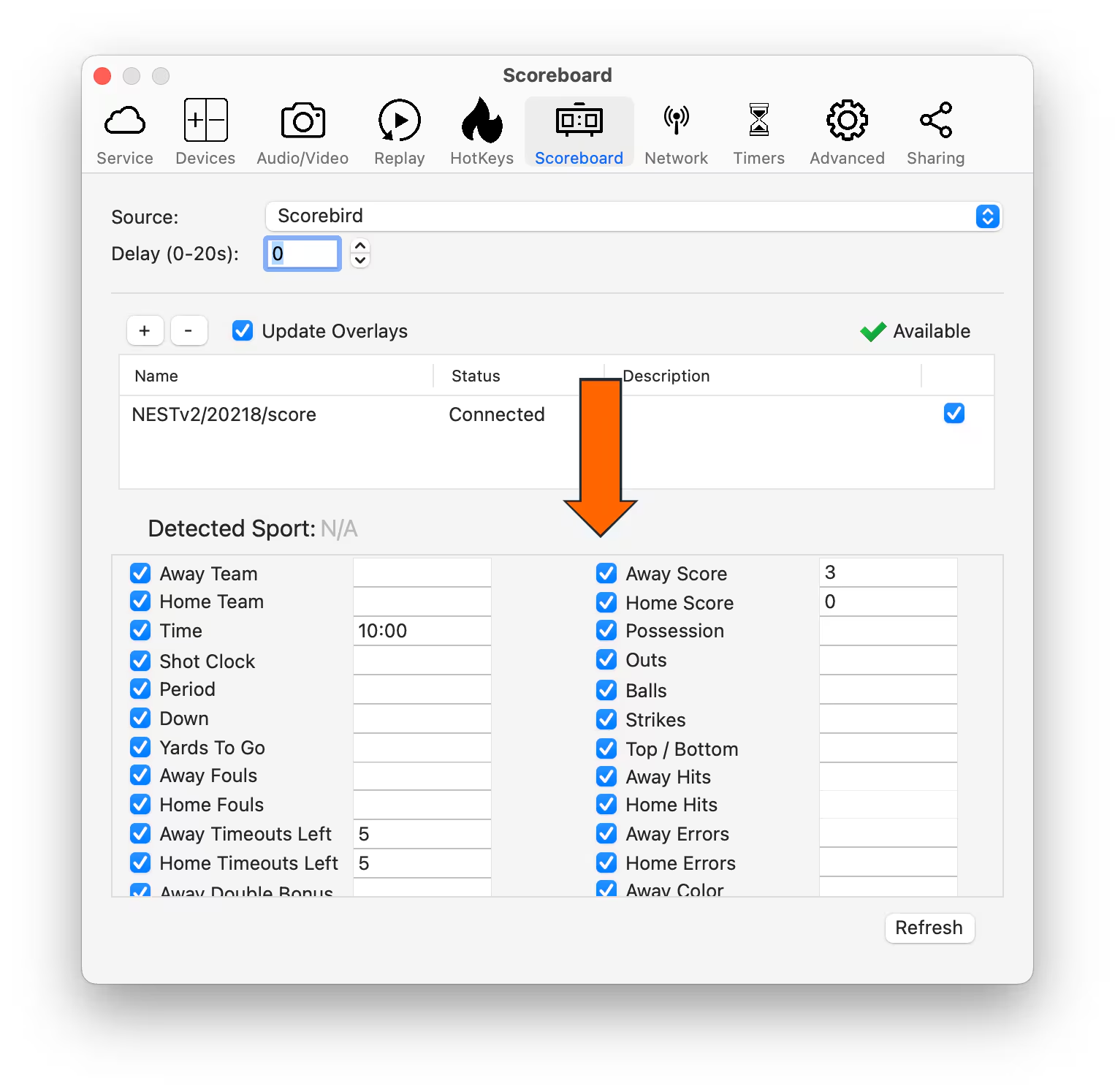
Step 7: Verify "Connected" Status
The device entry should show a Connected status indicator. If it shows an error, double-check your NeST ID and ensure the device is online.
Accessing Overlays
Once the NeST device is connected, follow these steps to add score overlays to your production layout.
- Click the "+" button in the bottom-left corner of the Production Truck interface.
- Select your scoreboard template and the corresponding control panel.
- Drag the scoreboard graphic onto the preview area.
- Select the "Game" and "Shot" checkboxes to enable live clock data in the overlay.
- Click the Overlay button to push the graphic to your active output.
Troubleshooting
- Status shows "Disconnected"? Confirm your NeST ID is correct and that the device has an active network connection. Visit the ScoreBird portal to verify the device is online.
- Scores not updating in the overlay? Make sure Update Overlays is toggled on and that a game is active in your ScoreBird schedule.
- No NeST devices available to add? Ensure the device is registered to your ScoreBird account at customer.scorebird.com.
- Need help? Contact support at support@scorebird.com or call 844-GOT-BIRD (844-468-2473).
Hudl Focus Camera Setup
Hudl Focus Camera Integration
To use a Hudl Focus camera with ScoreBird score overlays, both need to be connected through OBS (Open Broadcaster Software). OBS captures the Hudl Focus stream and adds the ScoreBird overlay on top as a browser source.
Before starting, confirm you have connected your Hudl Focus camera to OBS using Hudl's own setup guide.
Requirements
- Hudl Focus camera connected and streaming
- OBS installed and configured to capture the Hudl Focus feed
- A ScoreBird account with an active NeST device
- Your sport-specific overlay URL from the ScoreBird Portal
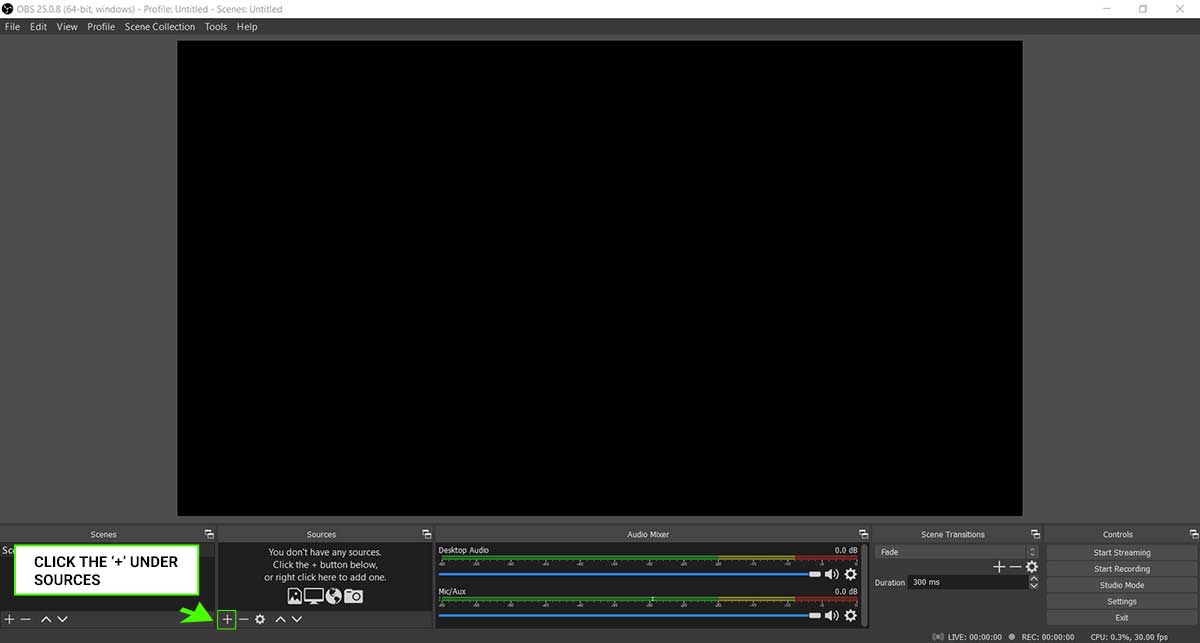
Step 1: Add a Source in OBS
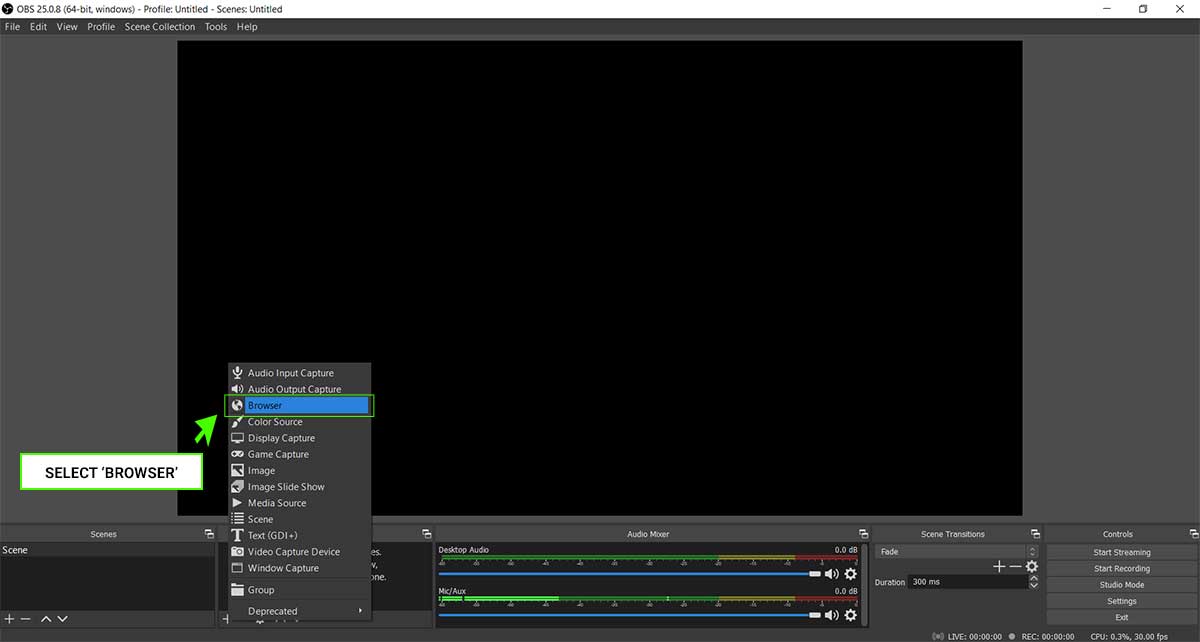
In OBS, click the "+" button in the Sources panel at the bottom of the screen.
Step 2: Select Browser Source
From the source type list, choose "Browser".
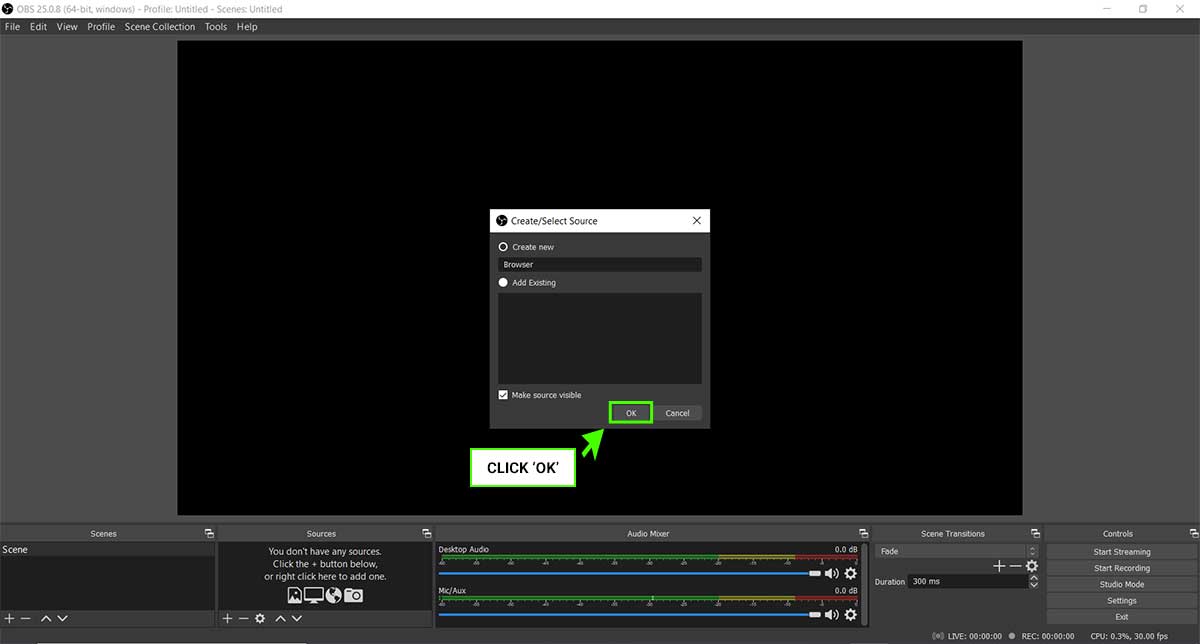
Step 3: Name the Source
Give the source a name such as "ScoreBird Overlay" and click OK.
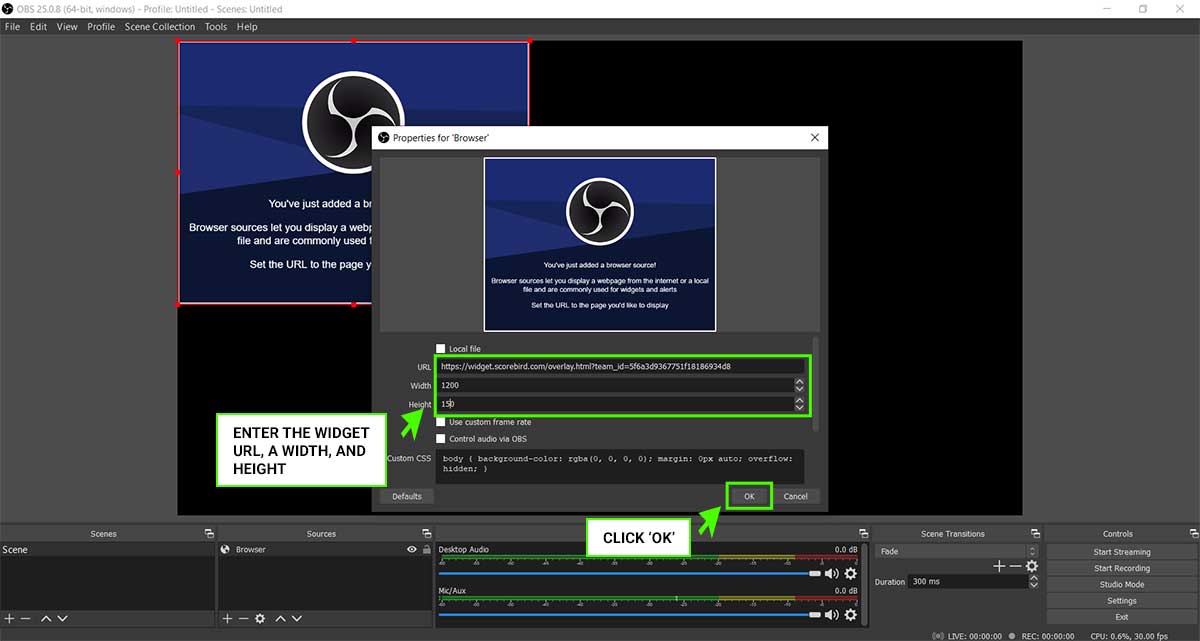
Step 4: Enter the Overlay URL
In the source properties window, paste your ScoreBird overlay URL into the URL field. Set the dimensions to match your stream resolution (typically 1920 × 1080). Click OK.
Your overlay URL is found in the ScoreBird Portal under Overlay Builder — select the correct sport and device, then copy the URL.
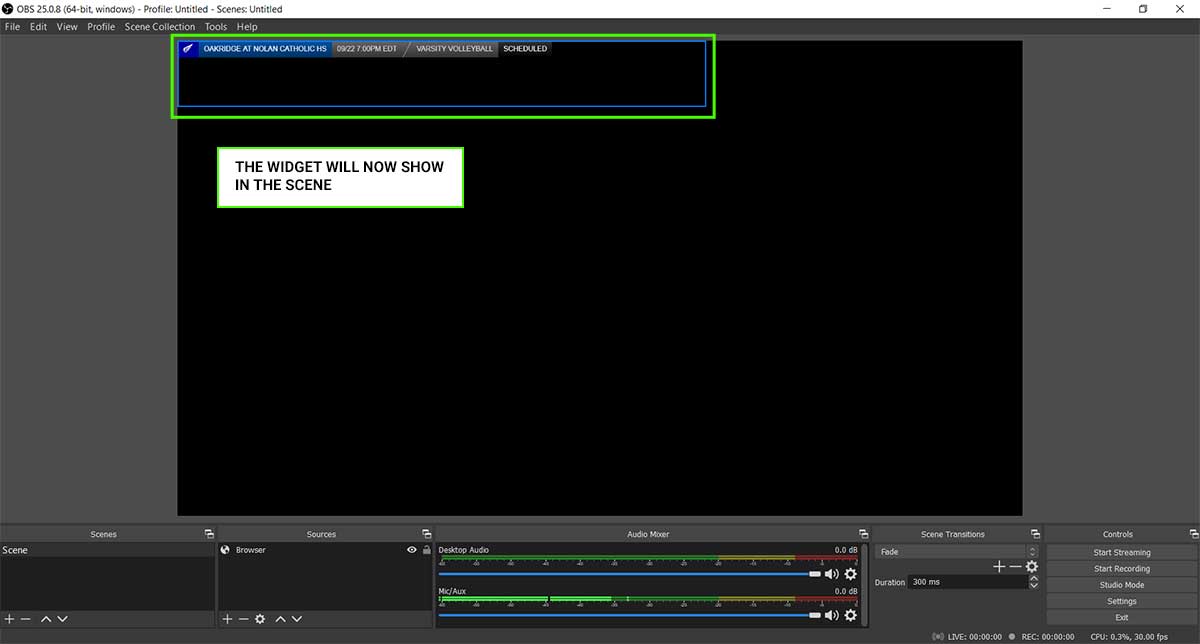
Step 5: Overlay Active
The ScoreBird overlay now appears as a layer over your Hudl Focus camera feed in OBS. Scores update automatically as your scoreboard changes — no manual intervention needed during the game.
Tips
- Layer order matters: In OBS, sources listed higher in the Sources panel appear in front of lower sources. Make sure the ScoreBird overlay source sits above your Hudl Focus camera source.
- Green screen option: If the default overlay background is opaque, add
&green_screen=trueto your overlay URL and apply a Chroma Key filter in OBS to make the background transparent. - Sport-specific overlays: Use the correct overlay URL for the sport you're broadcasting. A basketball overlay on a football game will show the wrong scoreboard fields.
Troubleshooting
- Overlay not showing? Verify your overlay URL is correct and that your NeST device shows "Connected" in the ScoreBird portal.
- Score not updating? Confirm a game is active in your ScoreBird schedule and NeST is reading the scoreboard.
- Hudl Focus feed issues? See Hudl's support documentation for camera-specific troubleshooting.
- Need help? Contact support at support@scorebird.com or call 844-GOT-BIRD (844-468-2473).
Ready to Connect with Hudl?
Get ScoreBird set up with Hudl and start showing live scores today.