

Broadcast Software Integration
ScoreBird + OBS Studio
Web IntegrationOBS Studio is the most widely used free streaming and recording software in the world, and ScoreBird connects to it via a browser source — no plugins or special hardware required. NeST reads your scoreboard in real time and ScoreBird delivers a live score overlay widget that you add to any OBS scene as a browser source URL, giving you professional live score graphics on every stream.
How It Works
Web Integration — add ScoreBird's widget URL as a Browser Source in OBS Studio
Set the browser source dimensions to ~1024×150px for the standard ticker overlay
Works on OBS Studio for Windows, macOS, and Linux
Score, clock, period, and sport-specific stats update instantly — no manual input
Customizable overlay designs for basketball, football, soccer, volleyball, and more
Web integration — works anywhere OBS browser sources are supported, including Streamlabs OBS
Setup Guide
OBS Studio Integration Setup
Add live ScoreBird score overlays to your OBS Studio streams in minutes. The broadcast overlay widget is added as a browser source — no plugins required.
Requirements
- OBS Studio installed (Windows, macOS, or Linux)
- A ScoreBird account with an active NeST device or ScoreBuddy Pro subscription
- Your overlay URL from the ScoreBird Portal
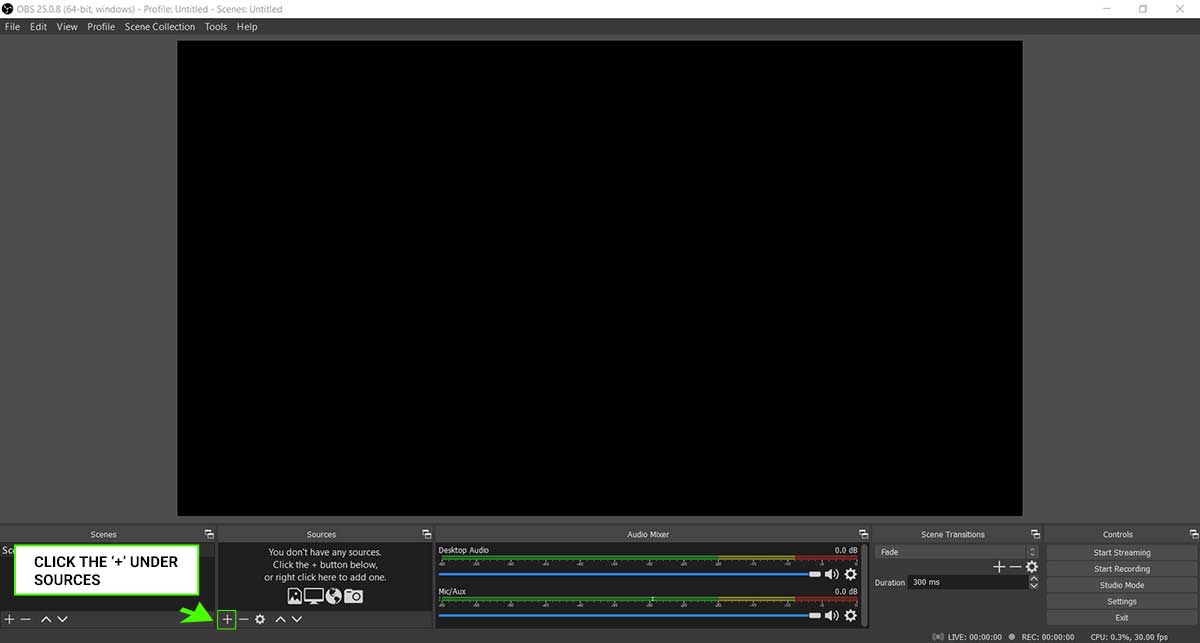
Step 1: Add a New Source
Click the "+" icon under the Sources panel in OBS.
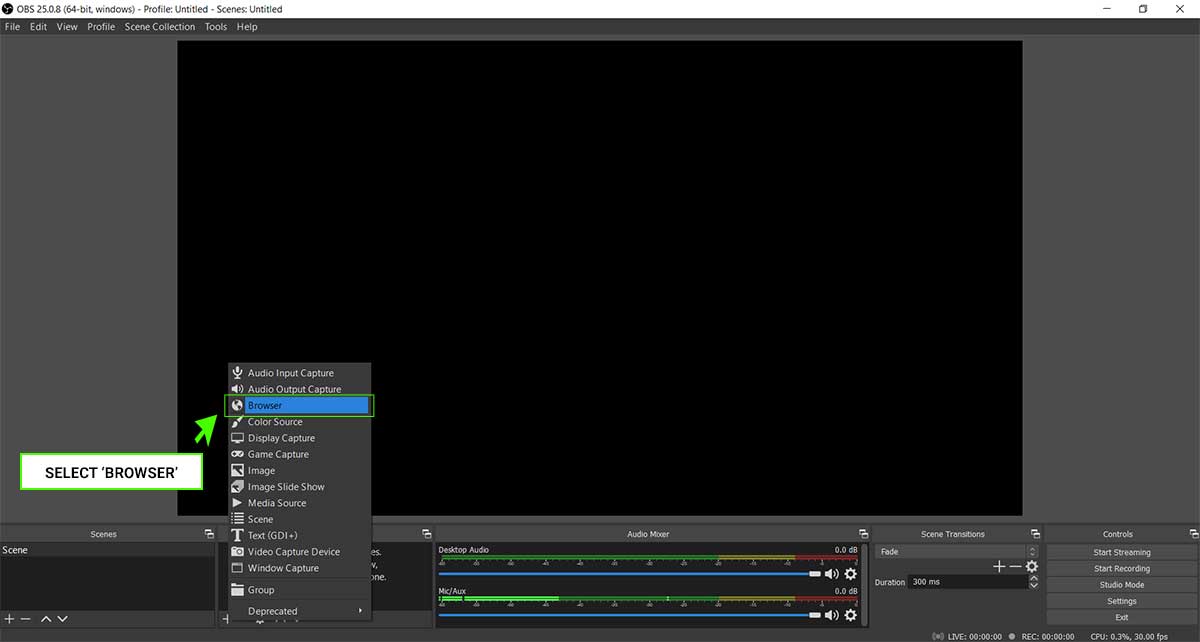
Step 2: Select Browser
Choose Browser from the source type list.
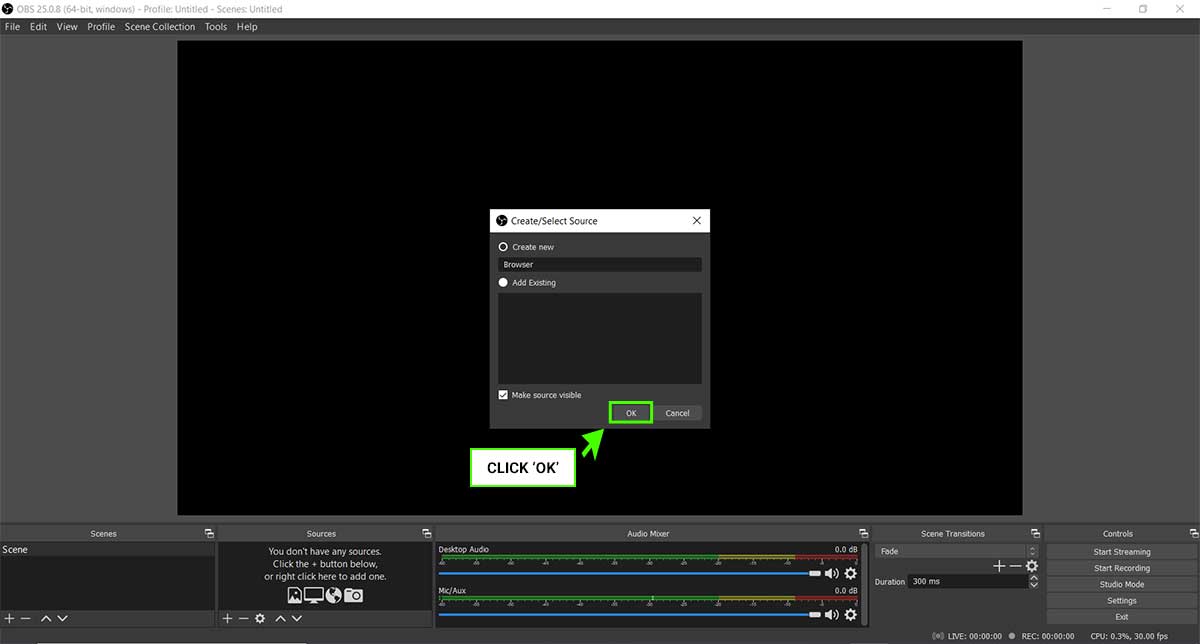
Step 3: Create New Source
Name your source (e.g., "ScoreBird Overlay") and click OK.
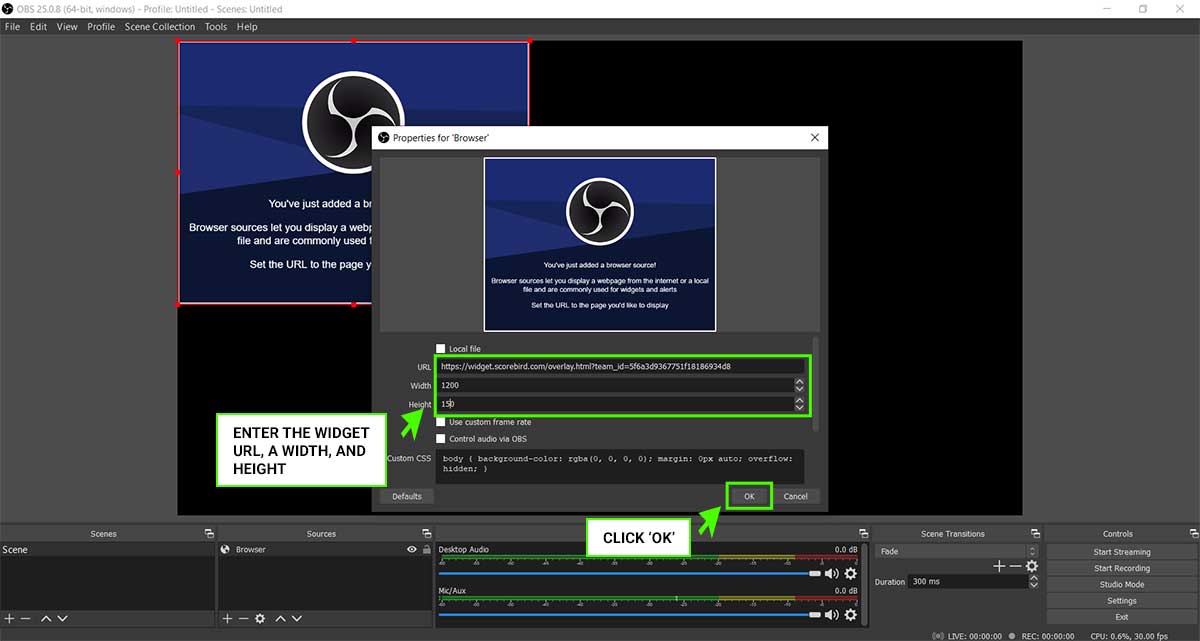
Step 4: Enter Widget URL and Dimensions
Paste your overlay URL from the ScoreBird Portal. Set the dimensions to approximately 1024px wide × 150px high (adjust as needed for your layout). Click OK.
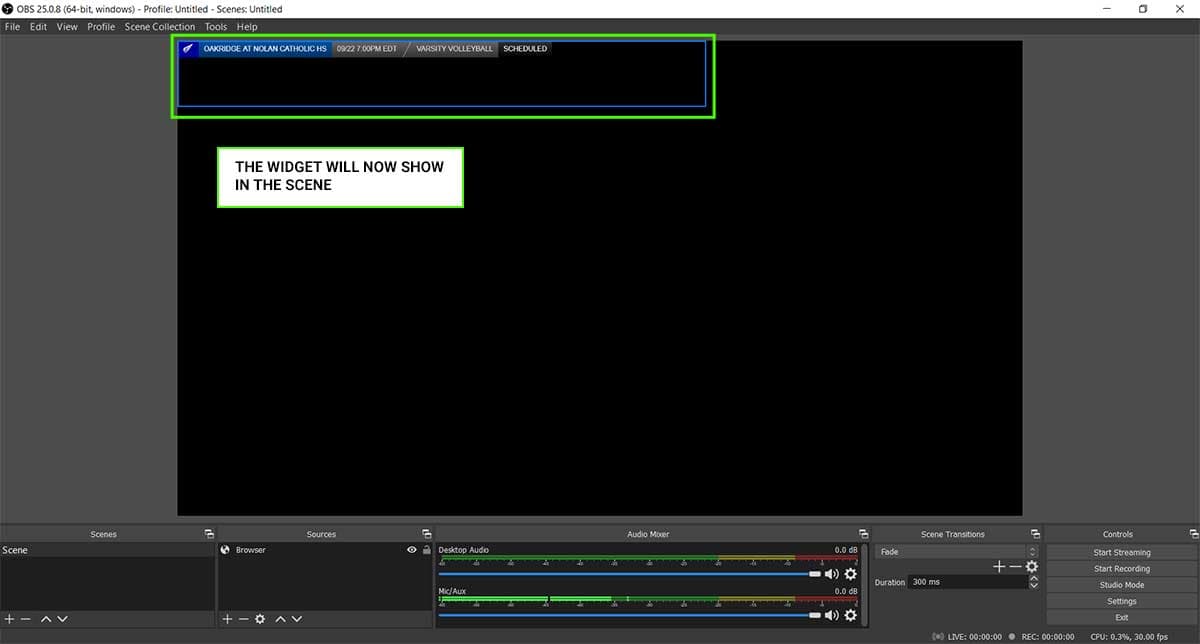
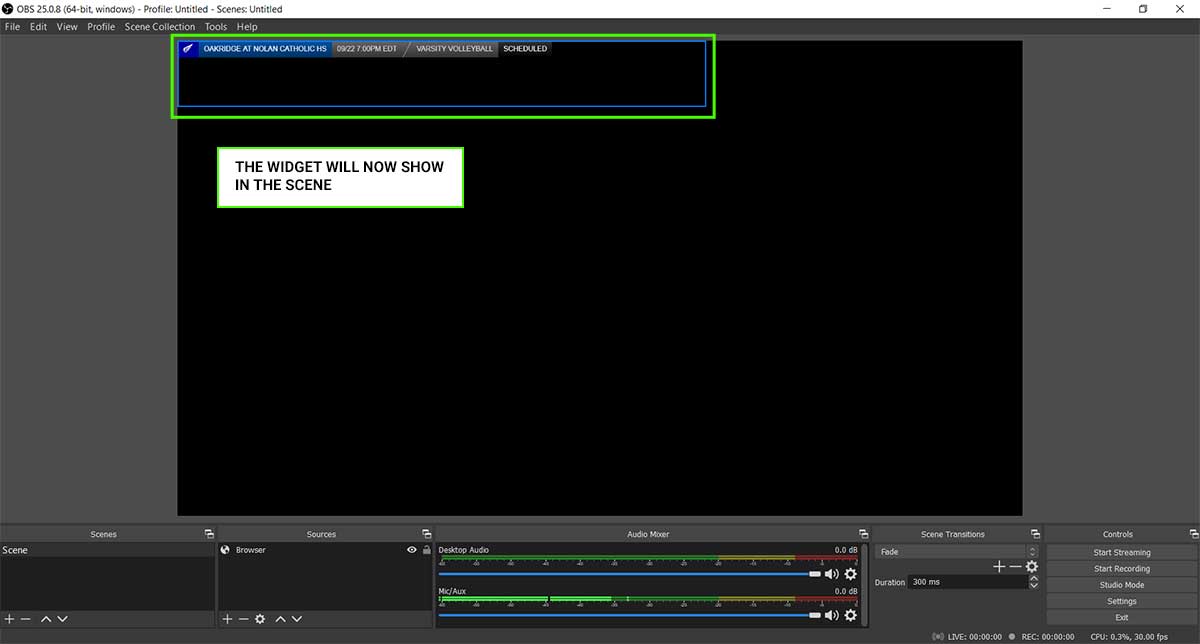
Step 5: Overlay Appears in Scene
The ScoreBird overlay widget now appears in your OBS scene. Position and resize it as needed.
Customization
You can customize overlay colors, team names, and display options using the overlay parameters. Build and preview your customized URL in the ScoreBird Portal.
Video Walkthrough
Troubleshooting
- Overlay not showing? Verify the URL is correct and your NeST device is online.
- Score not updating? Ensure a game is active in your ScoreBird schedule.
- Need help? Contact support at support@scorebird.com or call 844-GOT-BIRD (844-468-2473).
Ready to Connect with OBS Studio?
Get ScoreBird set up with OBS Studio and start showing live scores today.