

Broadcast Software Integration
ScoreBird + Vimeo Livestream
Web IntegrationVimeo Livestream is a professional live streaming platform used by organizations for high-quality event broadcasts. ScoreBird integrates with Vimeo via a web overlay — add your ScoreBird overlay URL to your Vimeo production and NeST delivers live scoring data throughout the broadcast.
How It Works
Web Integration — add ScoreBird's overlay URL to your Vimeo Livestream production
Professional-quality score overlay on your Vimeo stream
Live score, clock, and period data from NeST updates automatically
Works with Vimeo Livestream Studio and RTMP-based setups
No manual score entry — NeST reads directly from your scoreboard
Setup Guide
Vimeo Livestream Integration Setup
Add a live ScoreBird score overlay to your Vimeo Livestream productions using the built-in graphics layer. The overlay connects to your NeST device and updates automatically whenever your scoreboard changes.
Requirements
- Vimeo Livestream software installed
- A ScoreBird account with an active NeST device
- Your overlay URL from the ScoreBird Portal
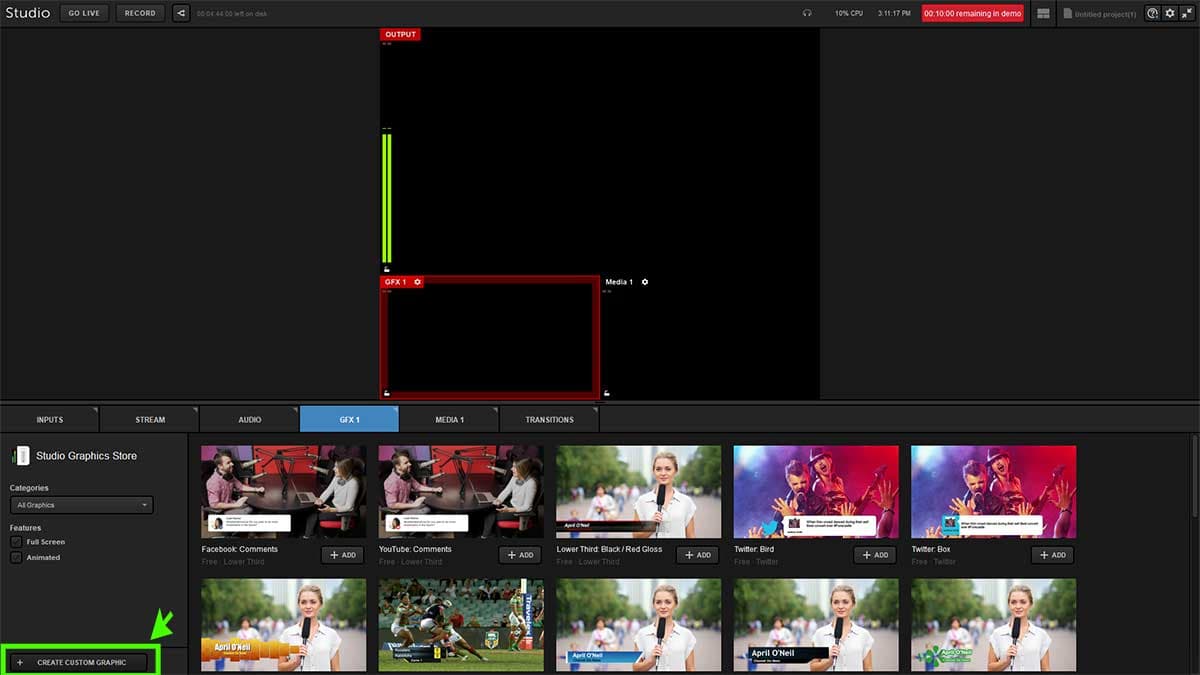
Step 1: Create a Custom Graphic
Open the Vimeo Livestream application and click "Create Custom Graphic" to begin adding a new graphics layer to your production.
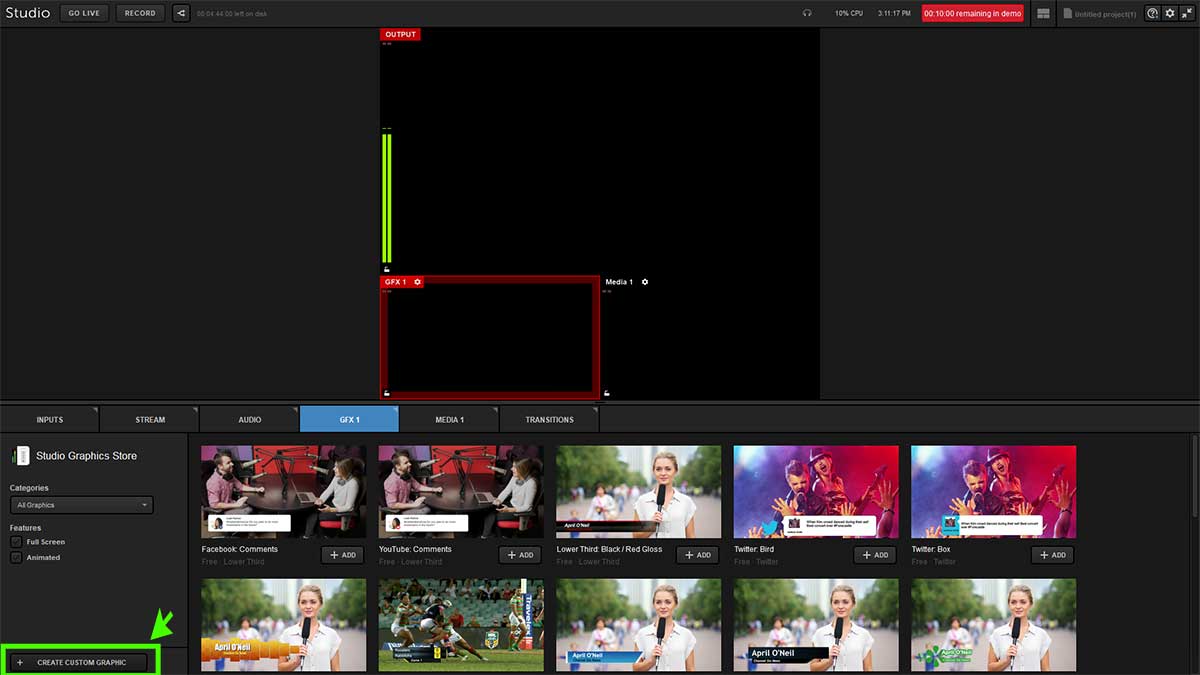
Step 2: Add a New Layer
Select GFX1_, then click Add Layer, and choose New Layer to create a fresh graphics layer for the ScoreBird overlay.
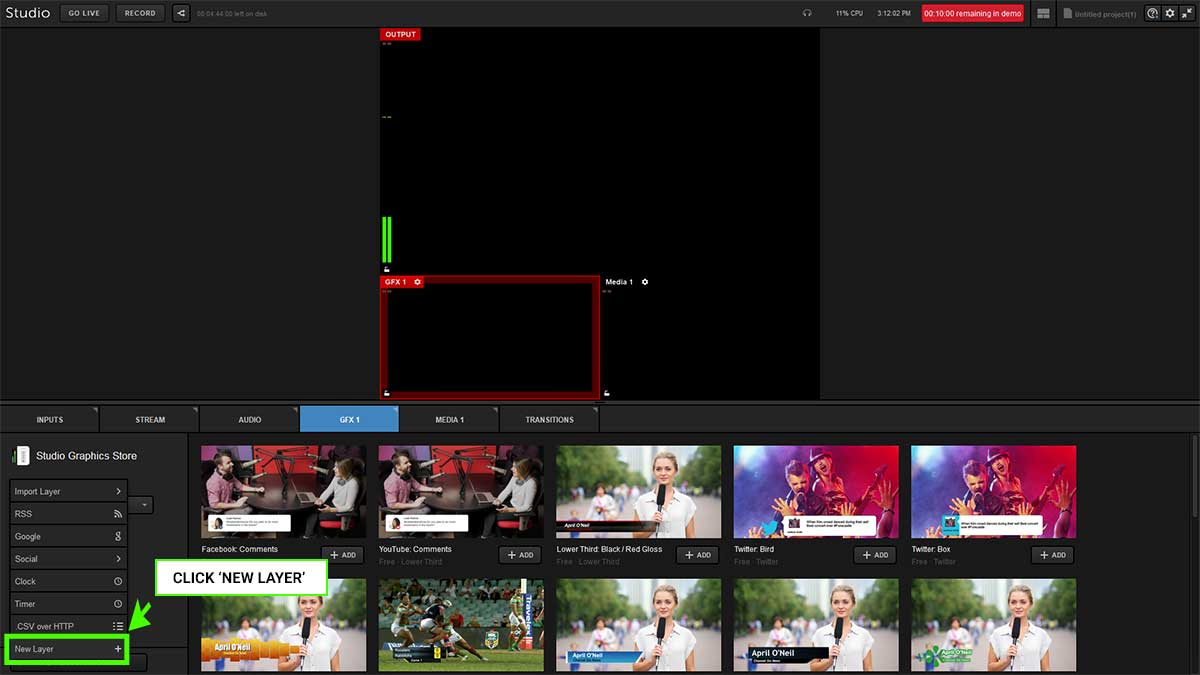
Step 3: Open the Layer Editor
Click the paint brush icon to open the layer editor where you can configure the graphic source.
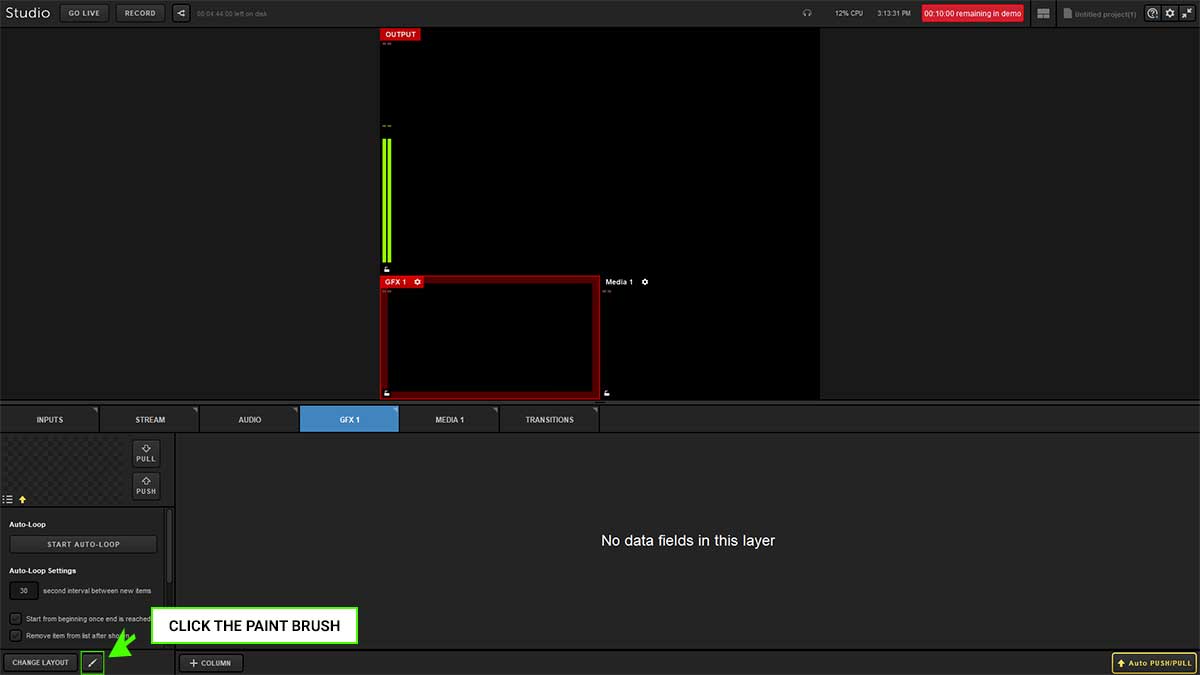
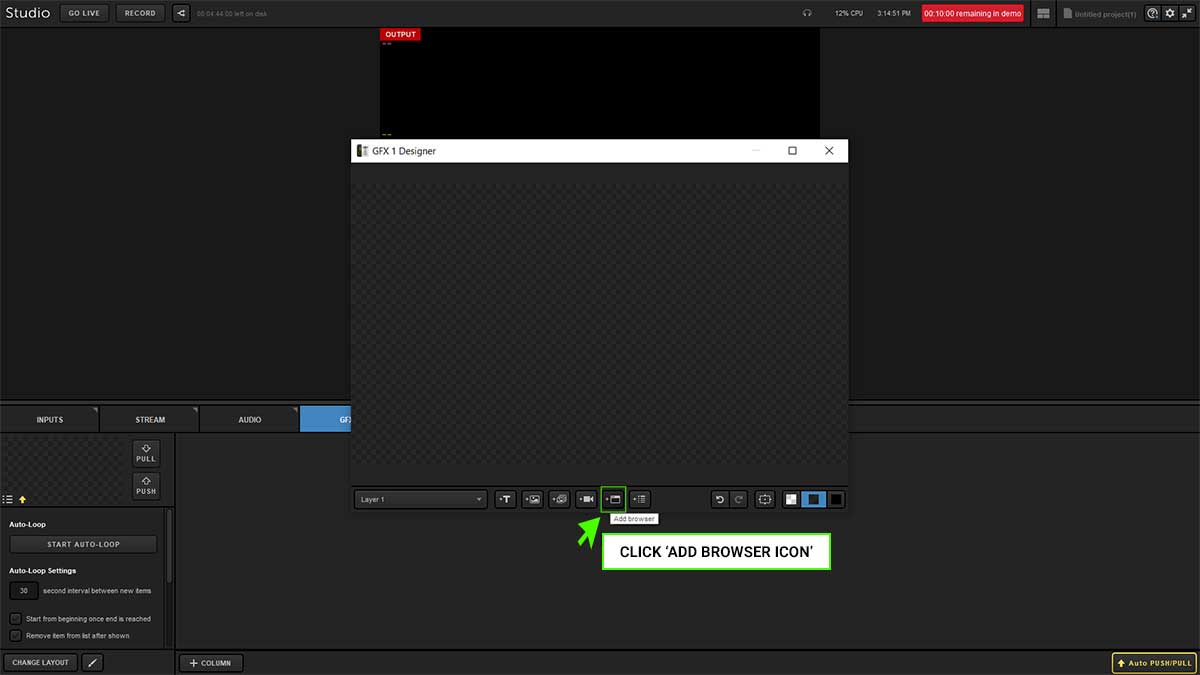
Step 4: Add a Browser Source
Click the "Add Browser" icon to insert a web-based graphic into the layer.
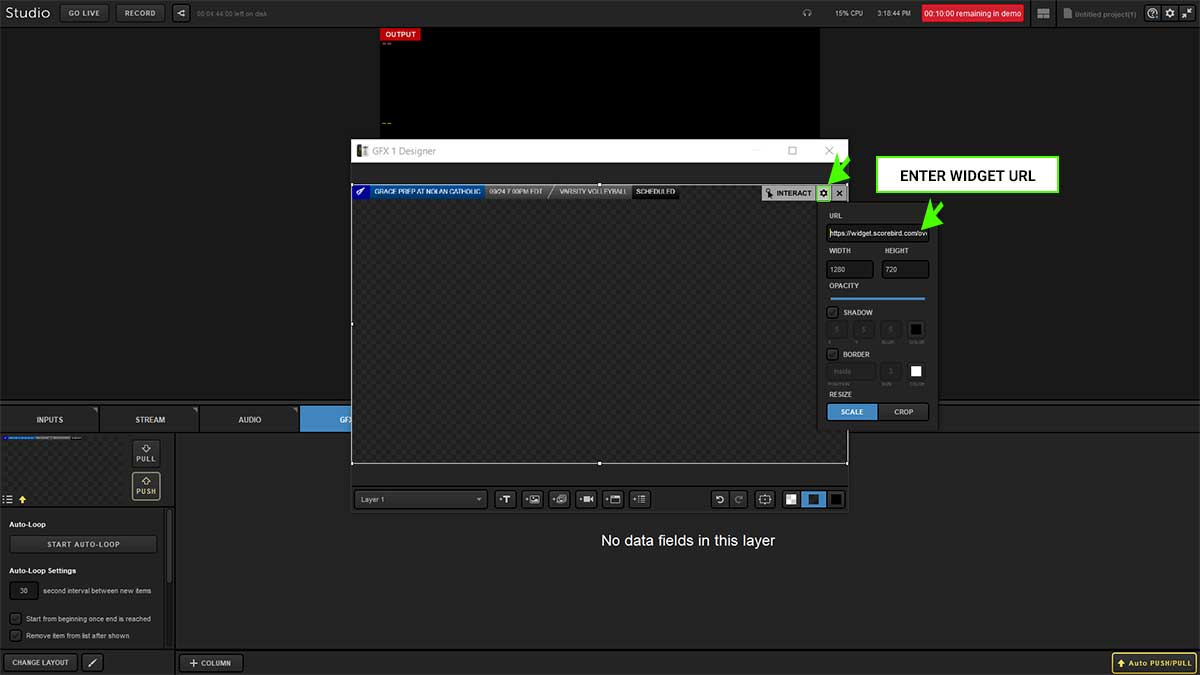
Step 5: Enter the Widget URL
Paste your ScoreBird overlay URL into the URL field. Set the dimensions to approximately 1024px wide × 150px high and confirm.
Get your overlay URL from the ScoreBird Portal under Overlay Builder. Select your device and sport, then copy the generated URL.
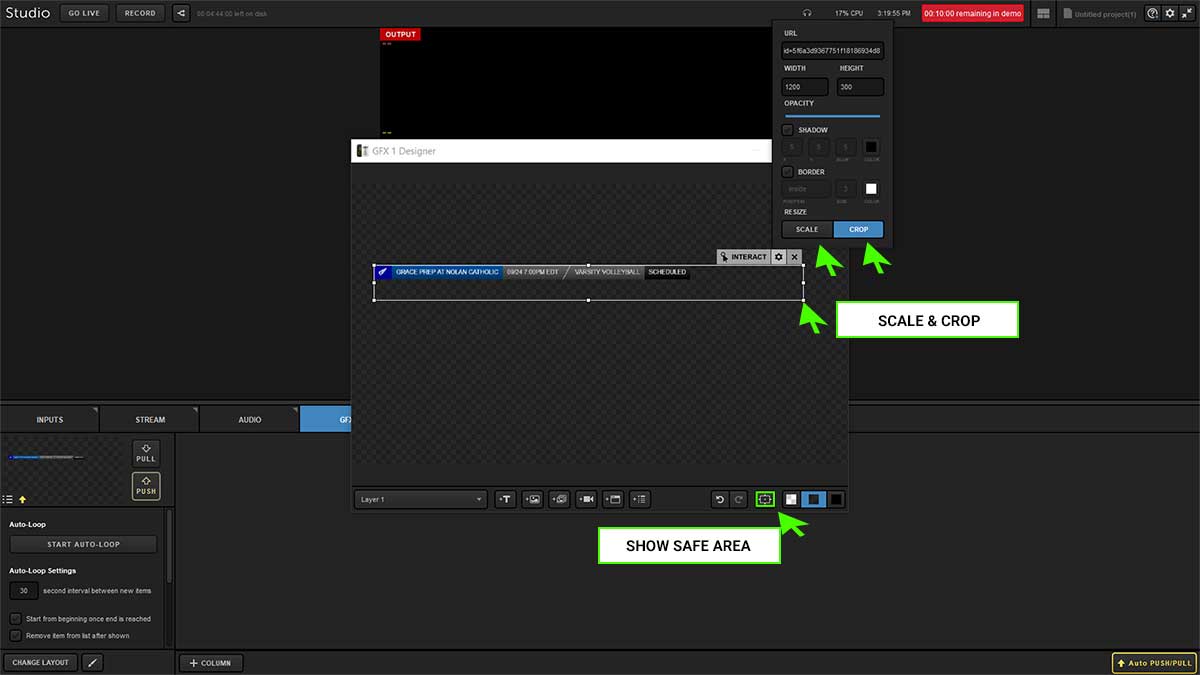
Step 6: Scale and Crop the Overlay
Resize and crop the graphic to fit your production layout. Use the "Show Safe Area" guide to ensure the overlay sits within the visible broadcast area.
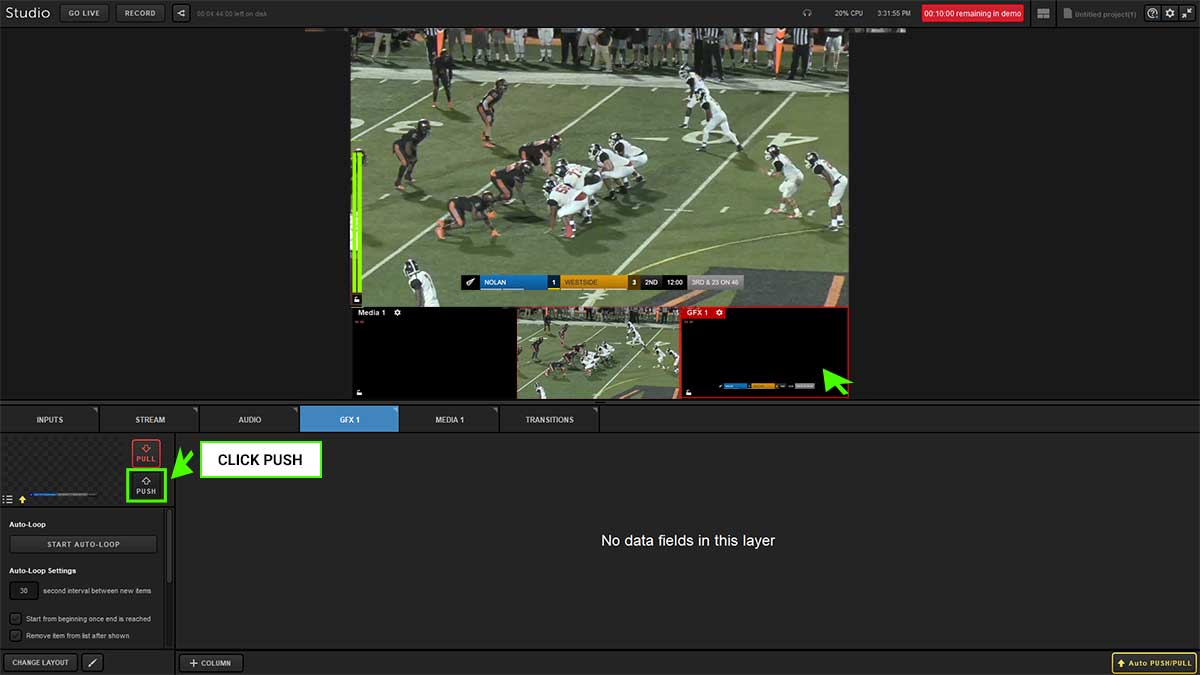
Step 7: Push to Staging Area
Click "Push" to move the overlay from the editor to the staging area, making it ready to go live in your broadcast.
Troubleshooting
- Overlay not appearing? Confirm the URL is correct and that your NeST device is showing as online in the ScoreBird portal.
- Score not updating? Verify that a game is active in your ScoreBird schedule. The widget only shows live data during active games.
- Graphic looks cropped or misaligned? Revisit Step 6 and adjust the crop and scale settings. Use "Show Safe Area" as a positioning reference.
- Need help? Contact support at support@scorebird.com or call 844-GOT-BIRD (844-468-2473).
Ready to Connect with Vimeo Livestream?
Get ScoreBird set up with Vimeo Livestream and start showing live scores today.