

Broadcast Software Integration
ScoreBird + vMix
Web & Native IntegrationvMix is professional live production software used by broadcasters and AV professionals worldwide for multi-camera switching, mixing, and streaming. ScoreBird integrates with vMix via both web browser input and native title data sources, so NeST can feed live scoreboard data directly into your vMix production as a live score overlay — no operator needed to update the score manually.
How It Works
Web & Native Integration — use ScoreBird's widget as a Web Browser input in vMix
Add the ScoreBird overlay URL as a Web Browser input and layer it over your video feed
Native title integration also available — pull live data directly into vMix GT title templates
Score, clock, period, and sport stats update automatically from your scoreboard via NeST
Works with vMix Basic HD through vMix 4K and Pro editions
No manual score entry during production — NeST keeps the data current
Setup Guide
vMix Web Browser Setup
vMix Web Browser Integration
Add live ScoreBird score overlays to your vMix productions using the web browser input method — the simplest way to integrate ScoreBird with vMix.
Requirements
- vMix installed
- A ScoreBird account with an active NeST device
- Your overlay URL from the ScoreBird Portal
Step 1: Add Input
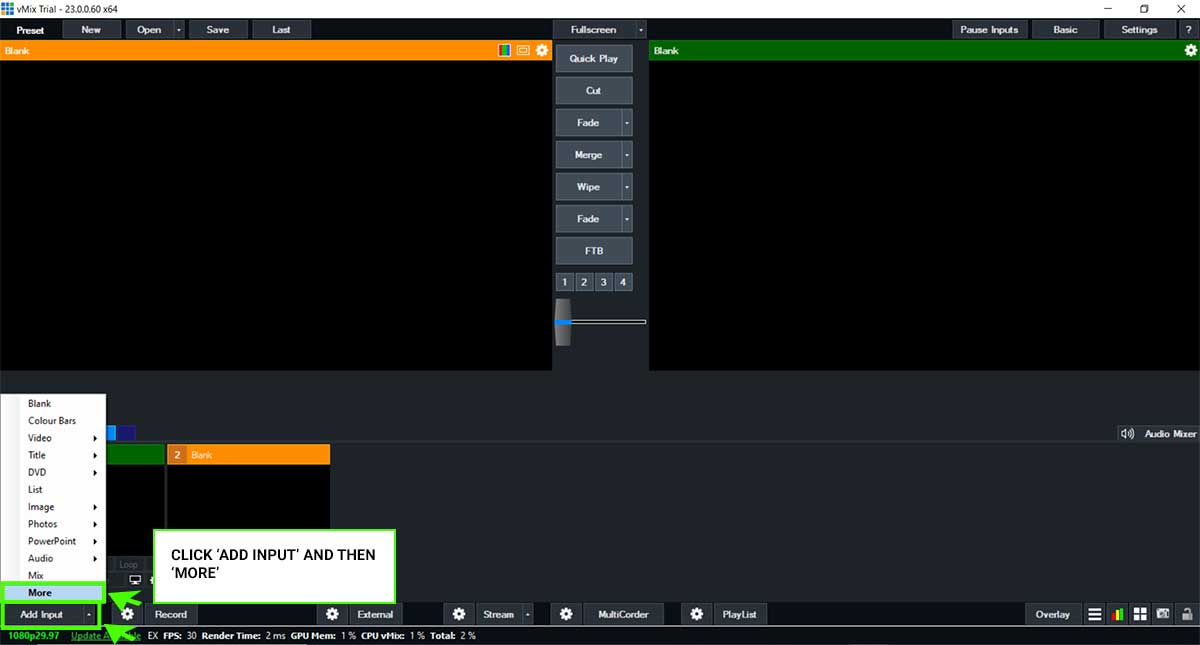
Click "Add Input" then "More" in vMix.
Step 2: Select Web Browser
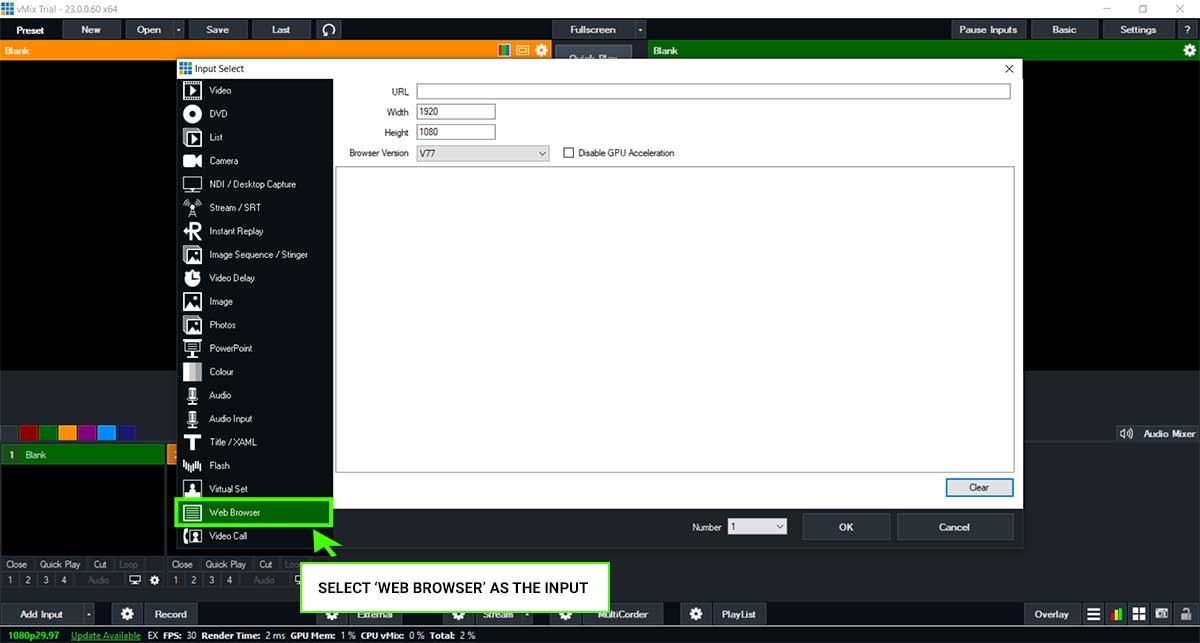
Choose "Web Browser" as the input type.
Step 3: Enter URL and Dimensions
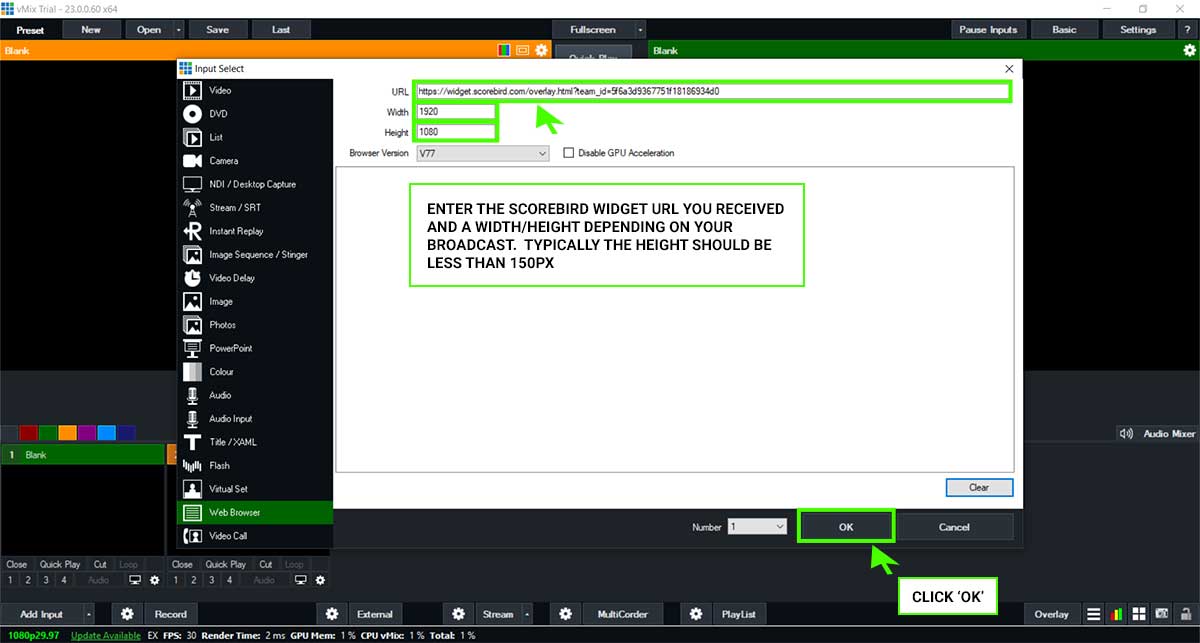
Paste your ScoreBird overlay URL. Set dimensions to approximately 1024px wide × 150px high. Click OK.
Step 4: Adjust Position
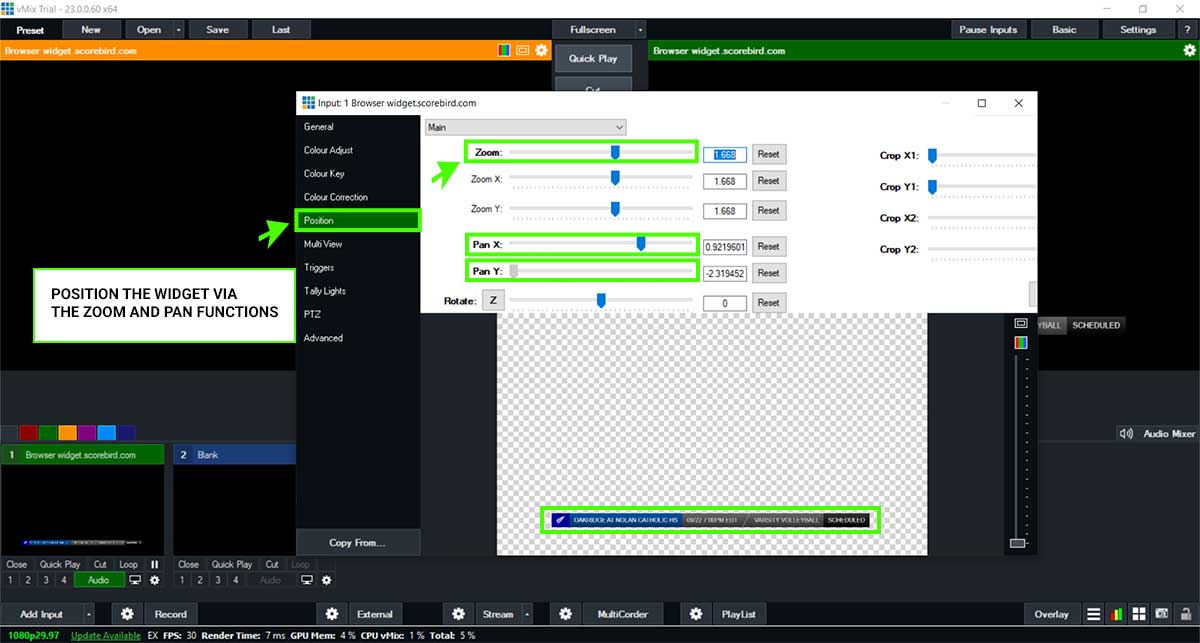
Use zoom and pan controls to position the overlay on screen.
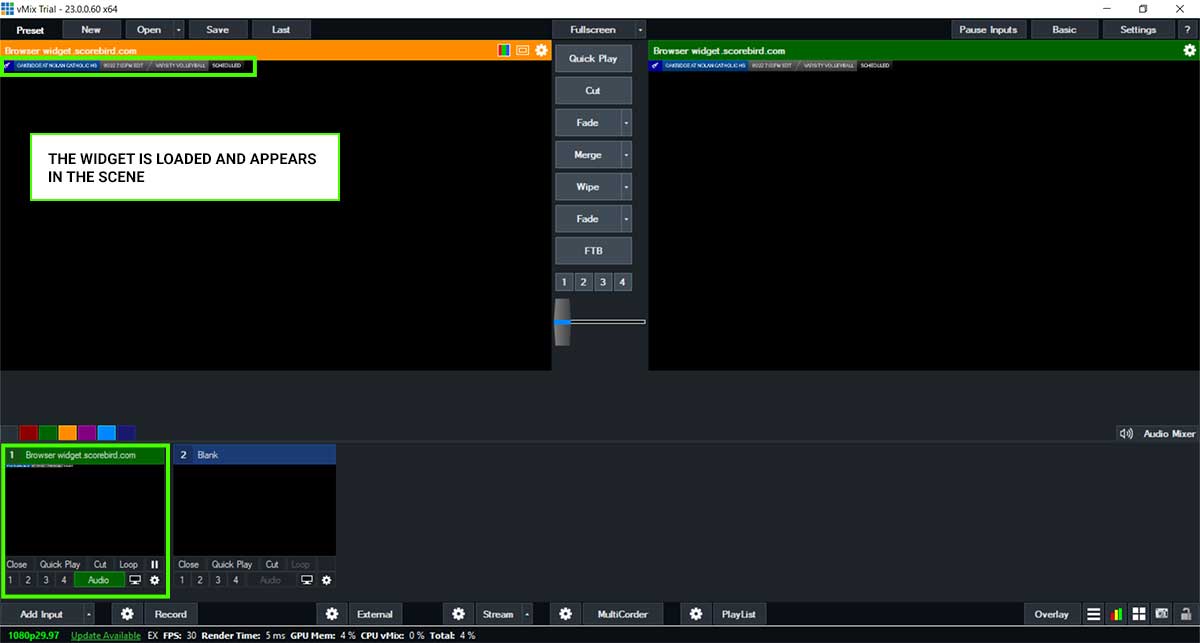
Step 5: Overlay Loaded
The ScoreBird widget now displays in your vMix scene with live scoring data.
Next Steps
For an alternative integration method using downloadable native title templates, see the vMix Native Input Setup guide.
Troubleshooting
- Overlay not showing? Verify the URL is correct and your NeST device is online.
- Score not updating? Ensure a game is active in your ScoreBird schedule.
- Need help? Contact support at support@scorebird.com or call 844-GOT-BIRD (844-468-2473).
vMix Native Input Setup
vMix Native Input Integration
The native input method uses downloadable vMix title templates that ScoreBird populates with live scoring data directly over your local network. This produces score graphics that are native to your vMix production rather than a browser overlay.
Network requirement: Your NeST device and vMix computer must be on the same local network for the native method to work. If they can't be on the same network, use the web browser input method instead.
Requirements
- vMix installed (any edition)
- A ScoreBird account with an active NeST device
- NeST device on the same network as your vMix computer
- ScoreBird Admin mobile app (to configure NeST → vMix connection)
Step 1: Download the ScoreBird vMix Templates
Contact ScoreBird support at support@scorebird.com or 844-GOT-BIRD (844-468-2473) to receive the vMix template package. The package contains sport-specific .gtzip title template files.
Step 2: Add the Template as an Input
In vMix, click "Add Input" → "Title" → "Browse". Navigate to the downloaded template file for your sport and select it.
The template appears as a new input in vMix's input row.
Step 3: Select Your Sport Template
Choose the appropriate sport template from the downloaded files. Each sport has its own template designed for that sport's scoreboard fields (clock, score, period/quarter/inning, etc.).
Step 4: Open Input Settings
Click the gear icon on the template input to open Input Settings.
Use the Zoom and Pan controls to position the score graphic in the correct location on your output frame.
Step 5: Rename the Input
In the General tab of Input Settings, rename the input to "Scorebird" (capital S). This name is required — the ScoreBird Admin app identifies the vMix input by this exact name.
Step 6: Configure the NeST Device
Open the ScoreBird Admin mobile app and navigate to your NeST device. Under overlay settings, select vMix and enter:
- vMix computer IP address — the local IP of the computer running vMix (find it in vMix under Settings → Web Controller)
- Port — typically 8088 (vMix's default web controller port)
Save the settings.
Step 7: Start the Game
Once NeST is configured and a game is active in your ScoreBird schedule, the template fields update automatically in real time as your scoreboard changes.
Note: A game must be active in your ScoreBird account for live data to transmit to the vMix template. If the template isn't updating, confirm the game is started in your schedule.
Troubleshooting
- Template not receiving data? Confirm the vMix computer IP and port are correct in the ScoreBird Admin app and that both devices are on the same network.
- Input not found by ScoreBird? The input must be named exactly "Scorebird" (capital S, no spaces) in vMix.
- Default port blocked? Some IT environments block port 8088. Check with your network administrator or try a different port in vMix's Web Controller settings.
- Need templates? Email support@scorebird.com — templates are provided for supported sports.
- Need help? Contact support at support@scorebird.com or call 844-GOT-BIRD (844-468-2473).
Ready to Connect with vMix?
Get ScoreBird set up with vMix and start showing live scores today.