

Cameras Integration
ScoreBird + CamStreamer
Native IntegrationCamStreamer is a suite of applications for Axis network cameras — CamOverlay and CamScripter — that renders live graphics directly on the camera output. ScoreBird's native CamStreamer integration pushes real-time scoring data from NeST into CamOverlay, so your live score overlay appears on the camera feed itself with no separate streaming software required.
How It Works
Native Integration — ScoreBird data connects directly to CamOverlay and CamScripter apps on Axis cameras
Score overlay renders on the camera output before it reaches your streaming platform
No separate broadcast software needed — the camera handles the graphic
Works with all Axis network cameras that support the CamStreamer app platform
NeST feeds live score, clock, and period data to the overlay in real time
Setup Guide
CamStreamer Integration Setup
Add live ScoreBird score overlays to your Axis camera streams using CamOverlay and CamScripter from CamStreamer.
Requirements
- An Axis network camera
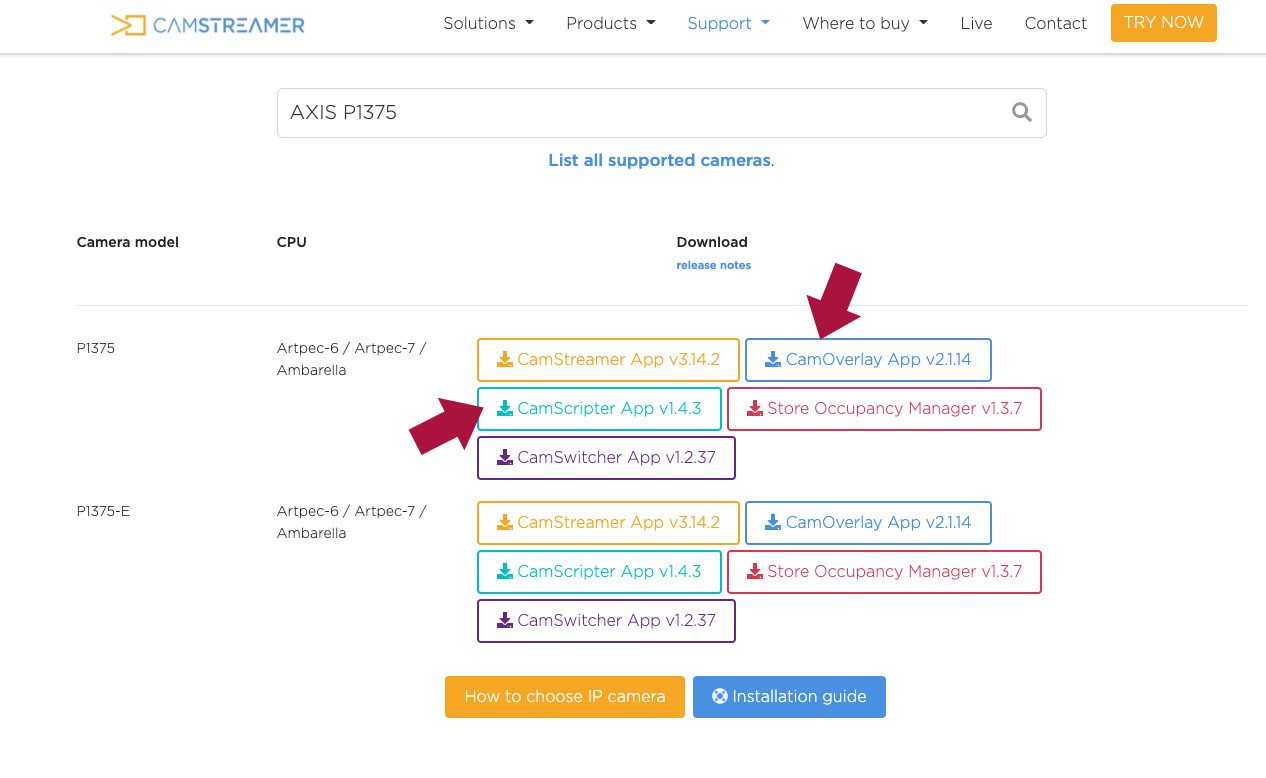
- CamOverlay and CamScripter apps (downloaded from CamStreamer)
- A ScoreBird account with an active NeST device
- Your ScoreBird API key and NeST serial number
Step 1: Download CamOverlay and CamScripter
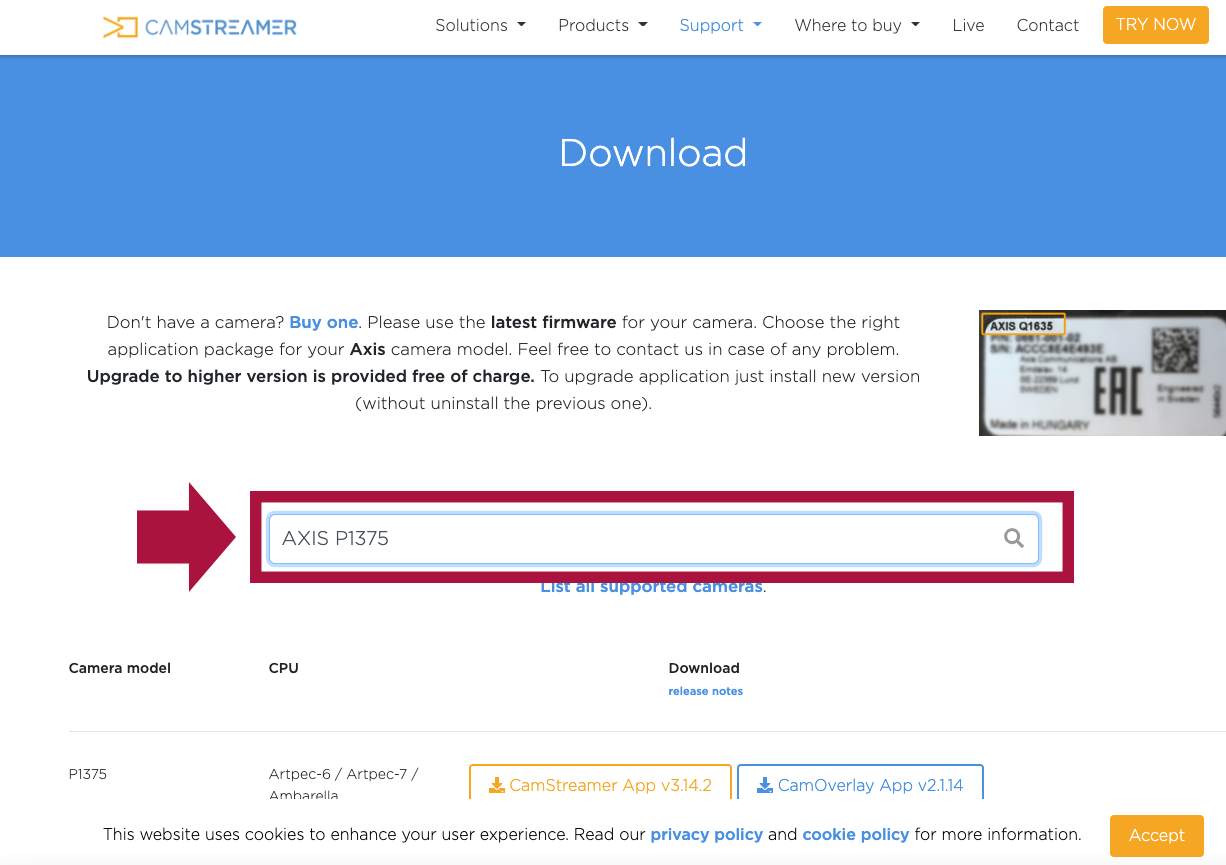
Go to camstreamer.com/download-app and enter your camera model to download the correct versions of both apps.
Step 2: Install Apps on the Camera
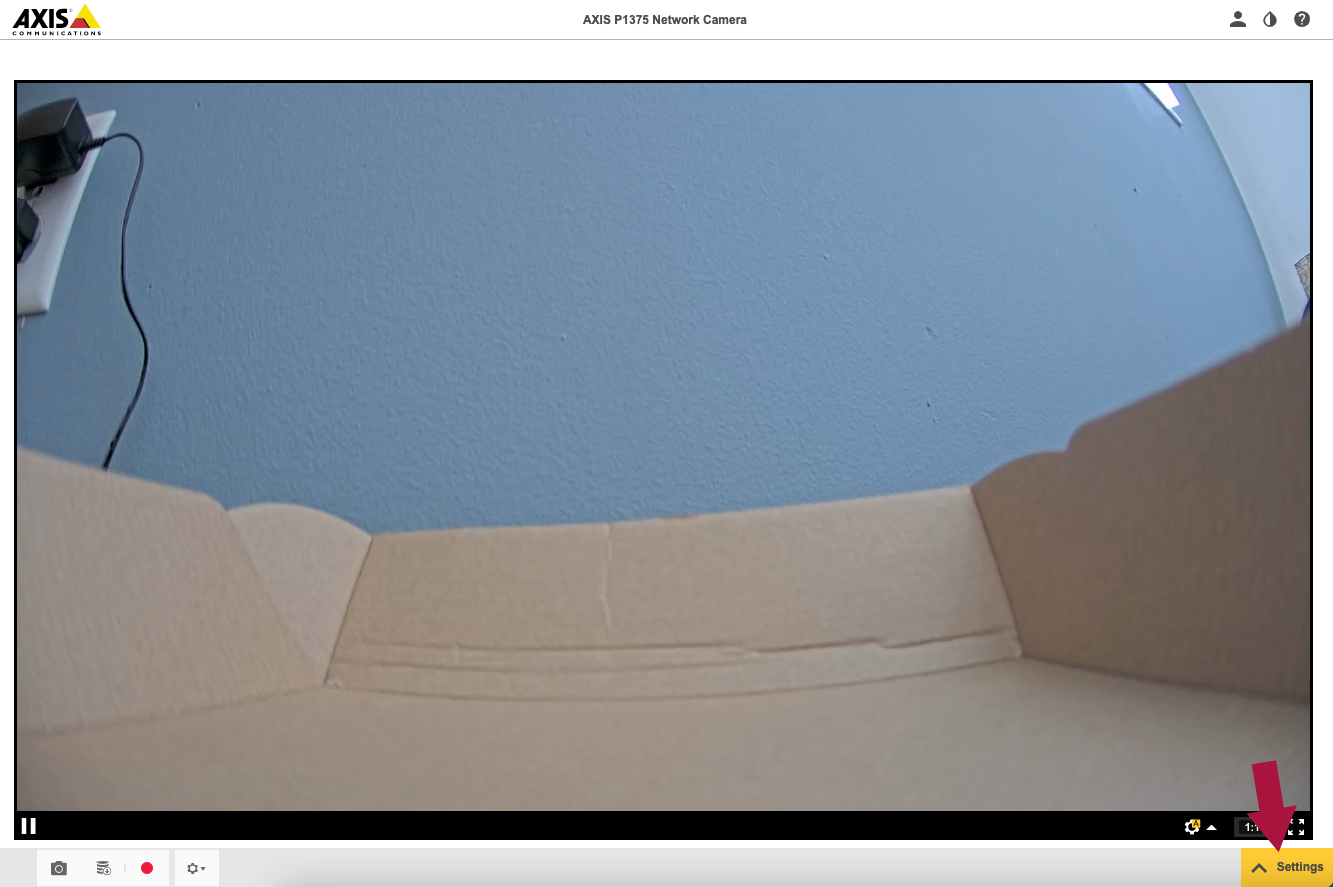
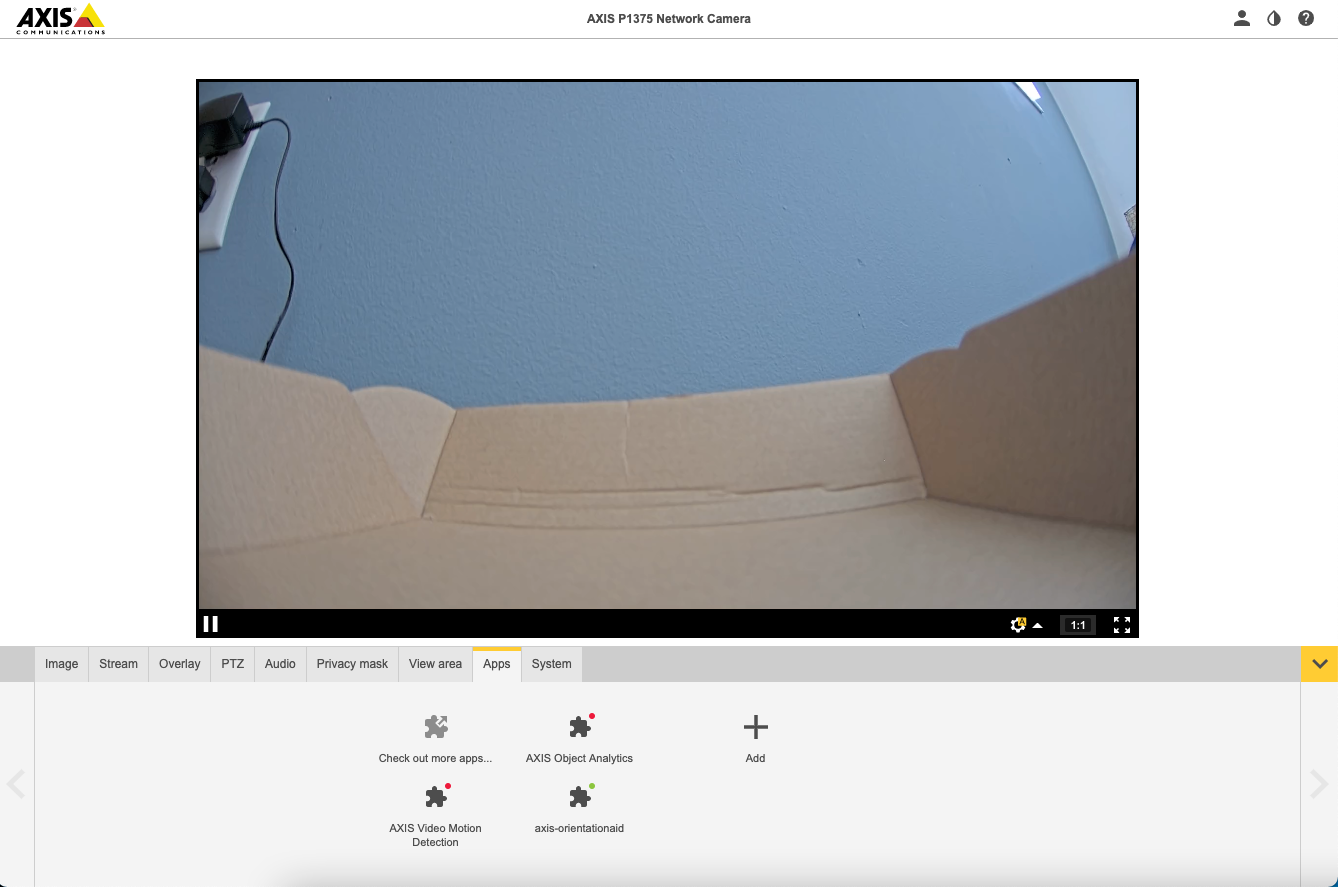
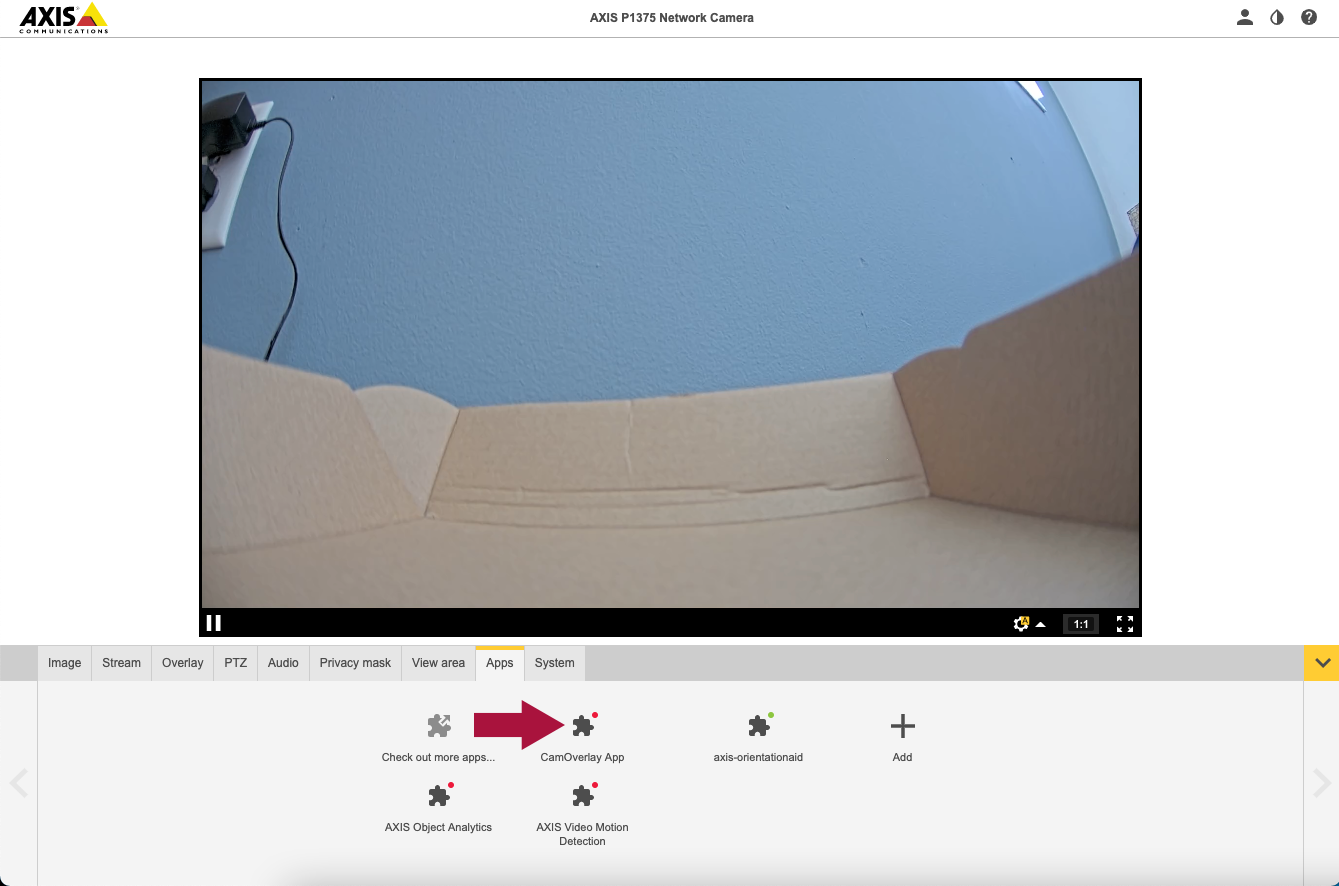
Access your camera's web interface by navigating to its IP address in a browser. Go to Settings > Apps and install both CamOverlay and CamScripter.
Step 3: Start Both Apps
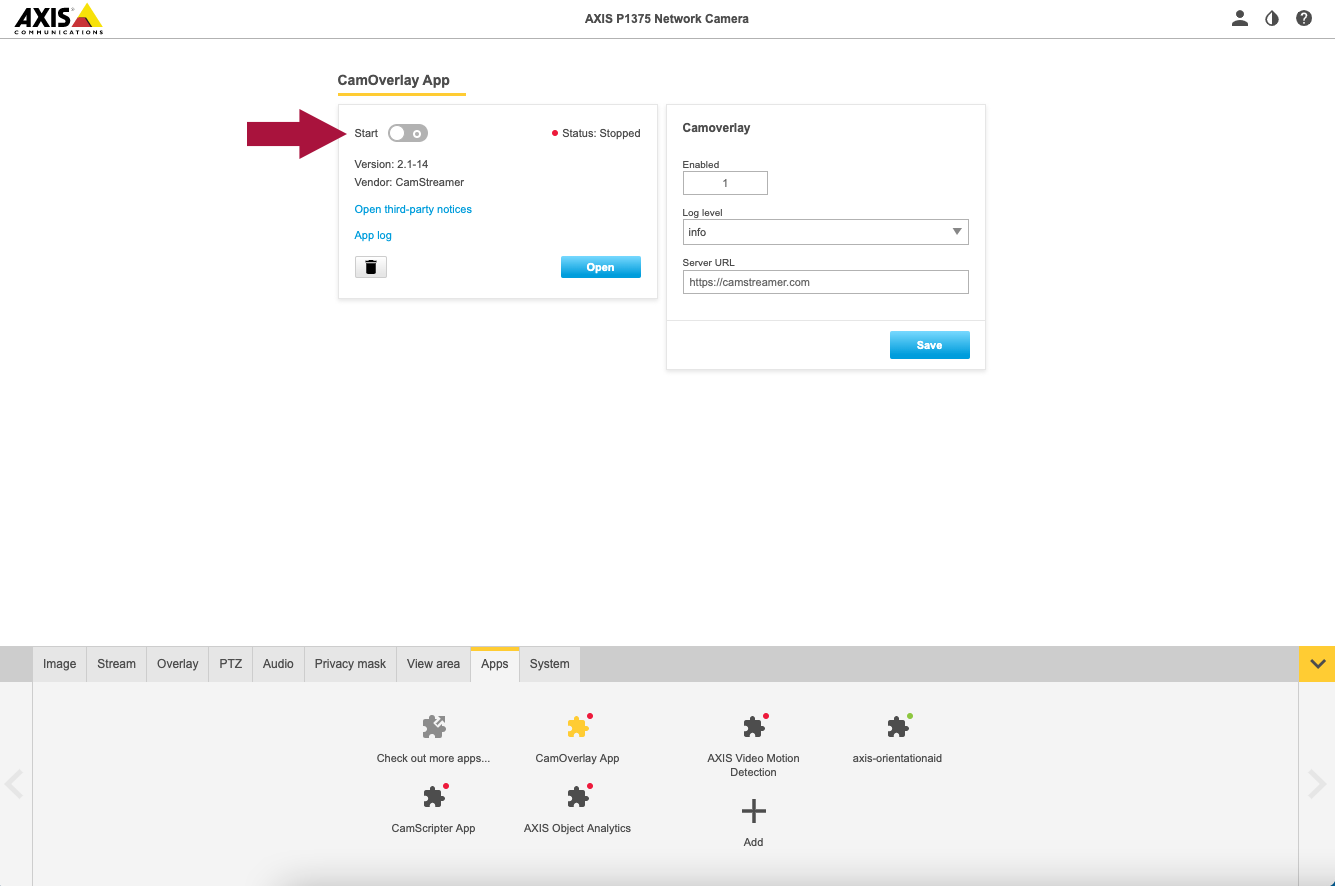
Toggle "Start" for both CamOverlay and CamScripter to enable them. Then open the CamScripter settings.
Step 4: Install the ScoreBird Overlay
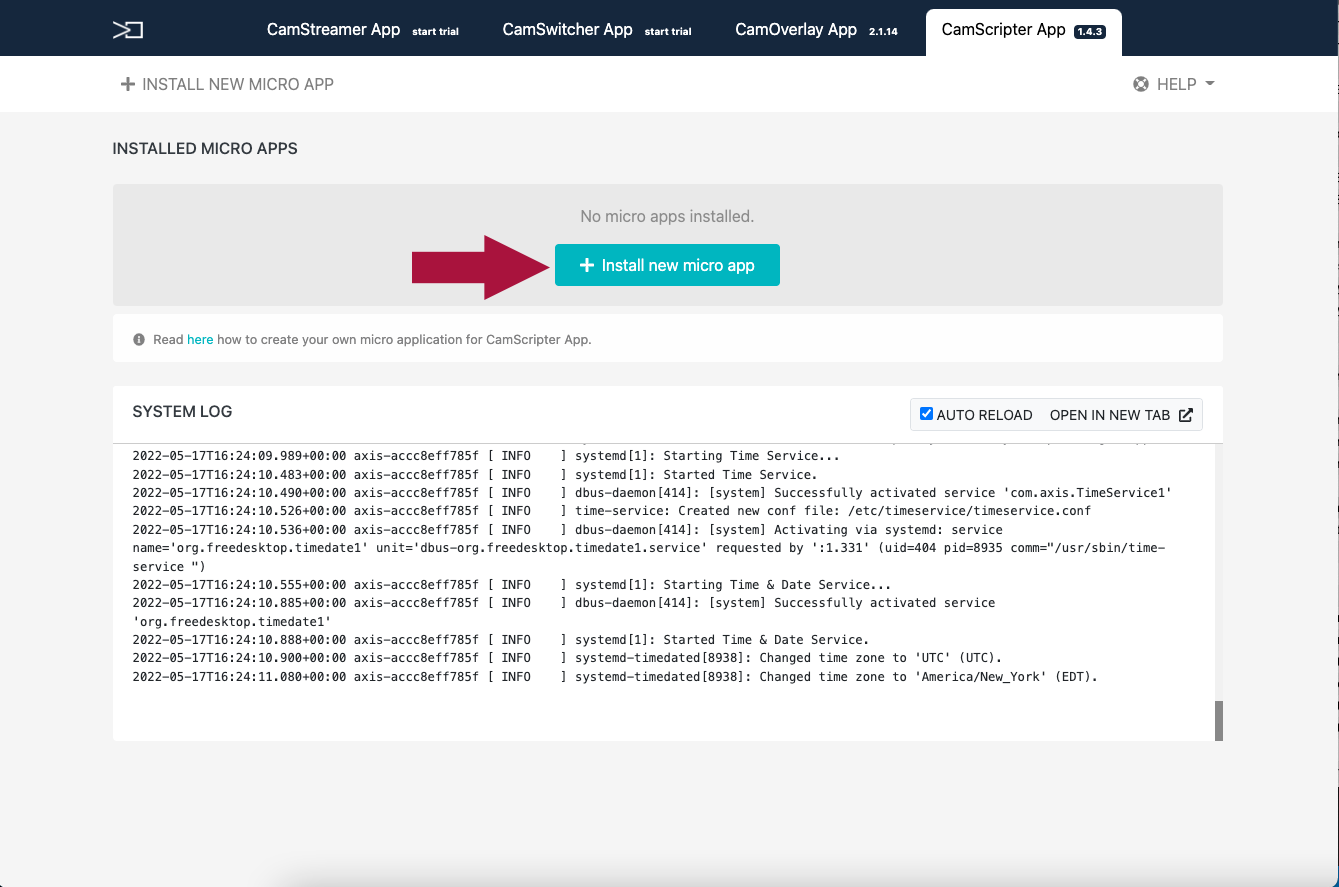
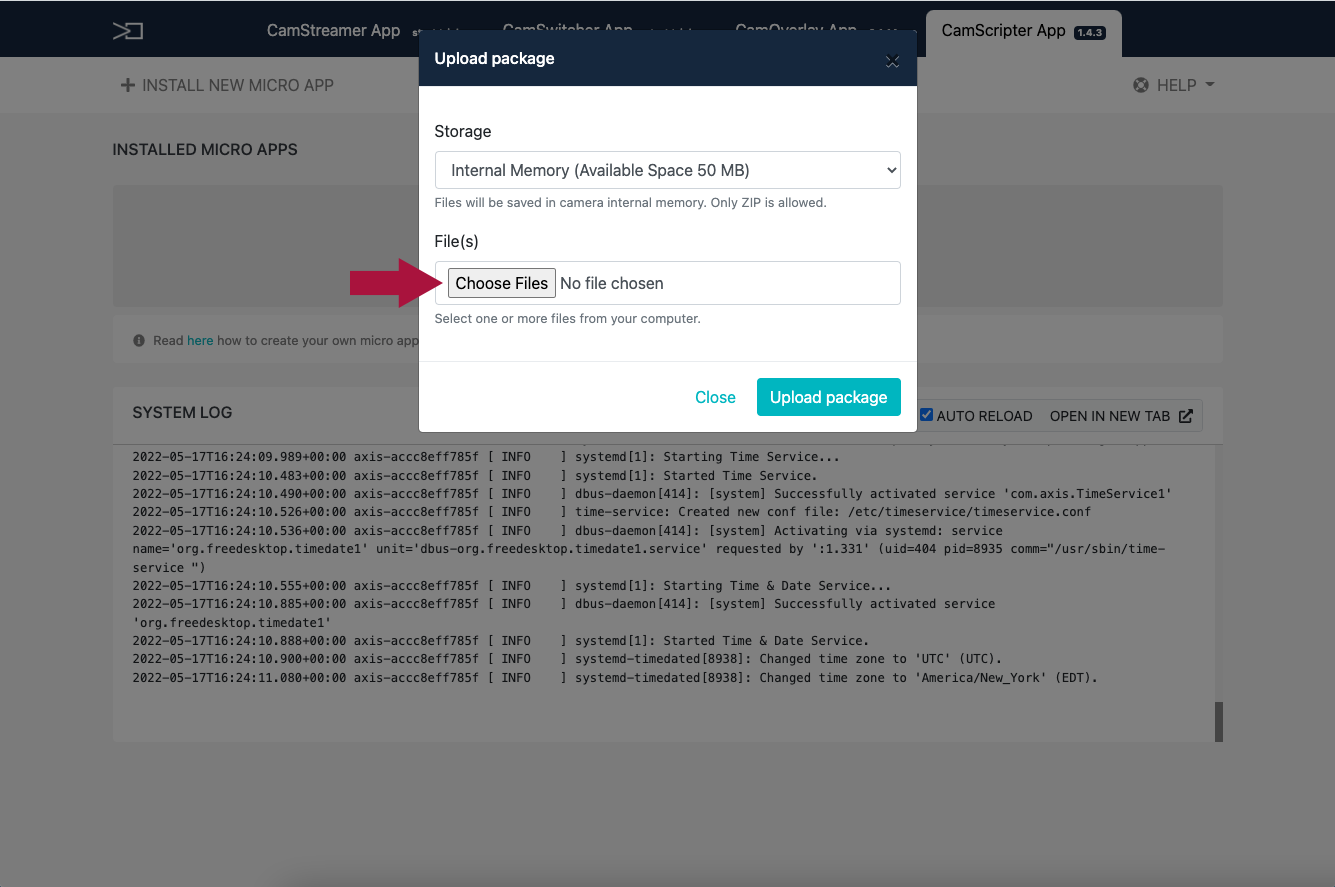
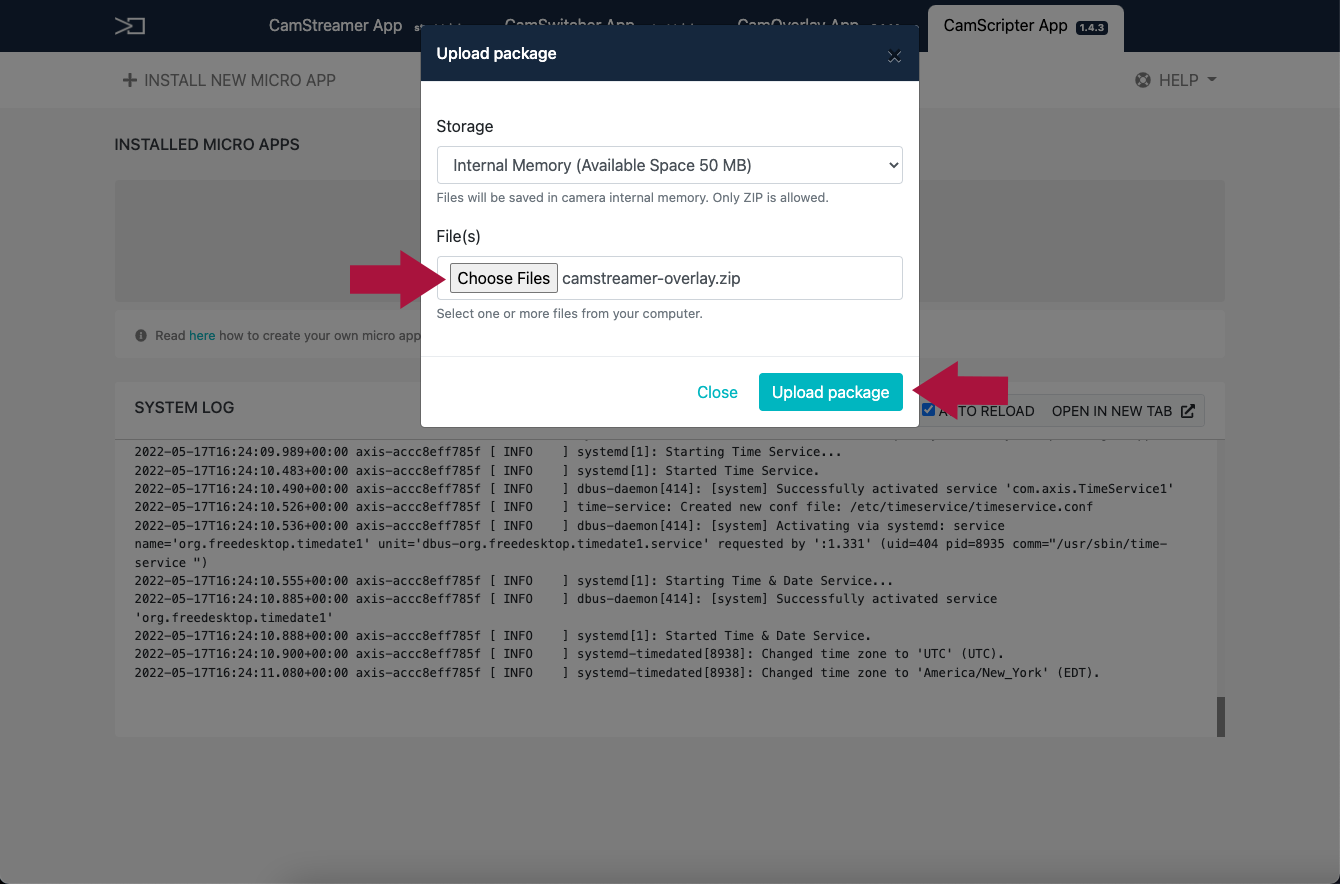
In CamScripter, click "Install new micro app" and upload the ScoreBird overlay ZIP file.
Step 5: Configure the Overlay
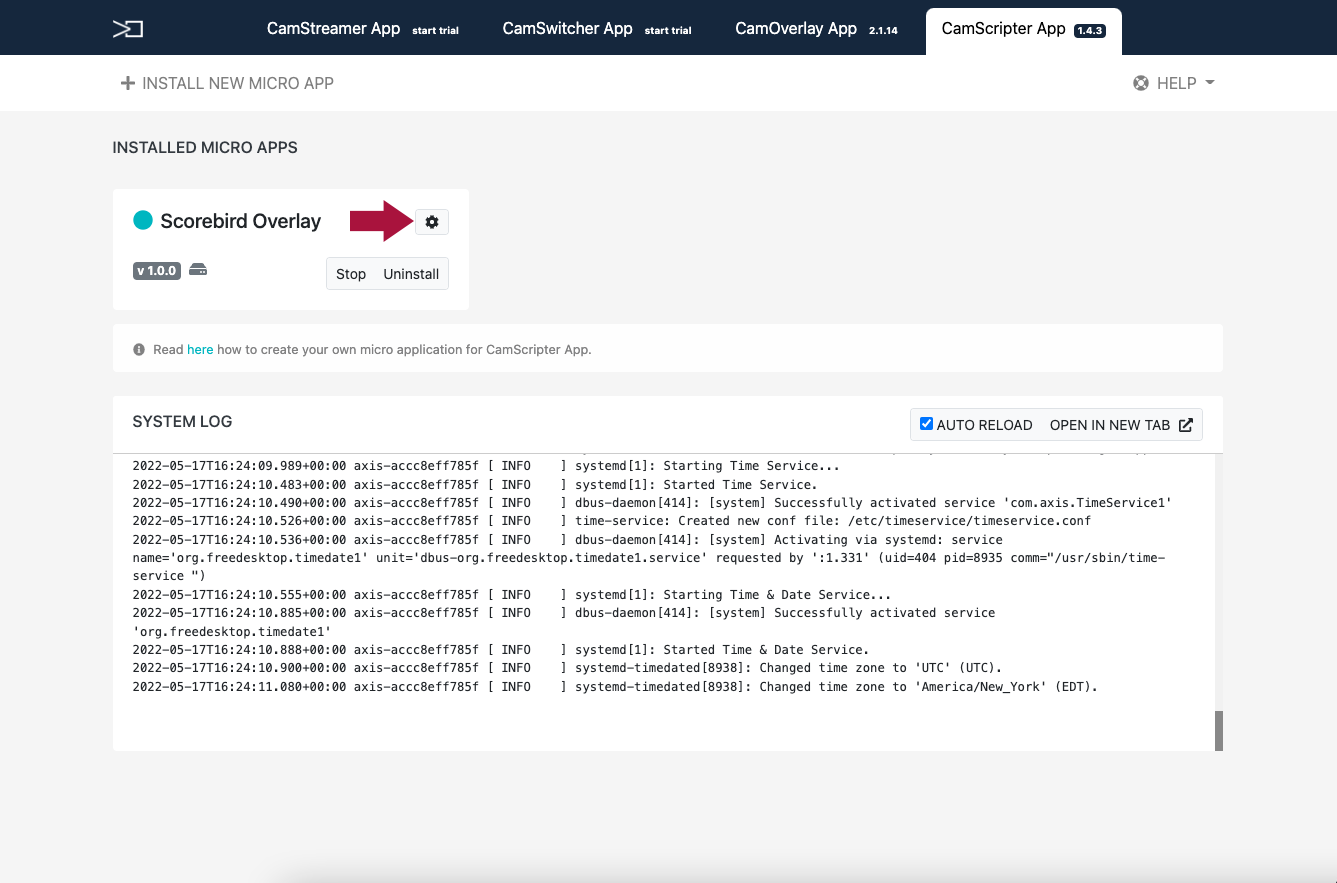
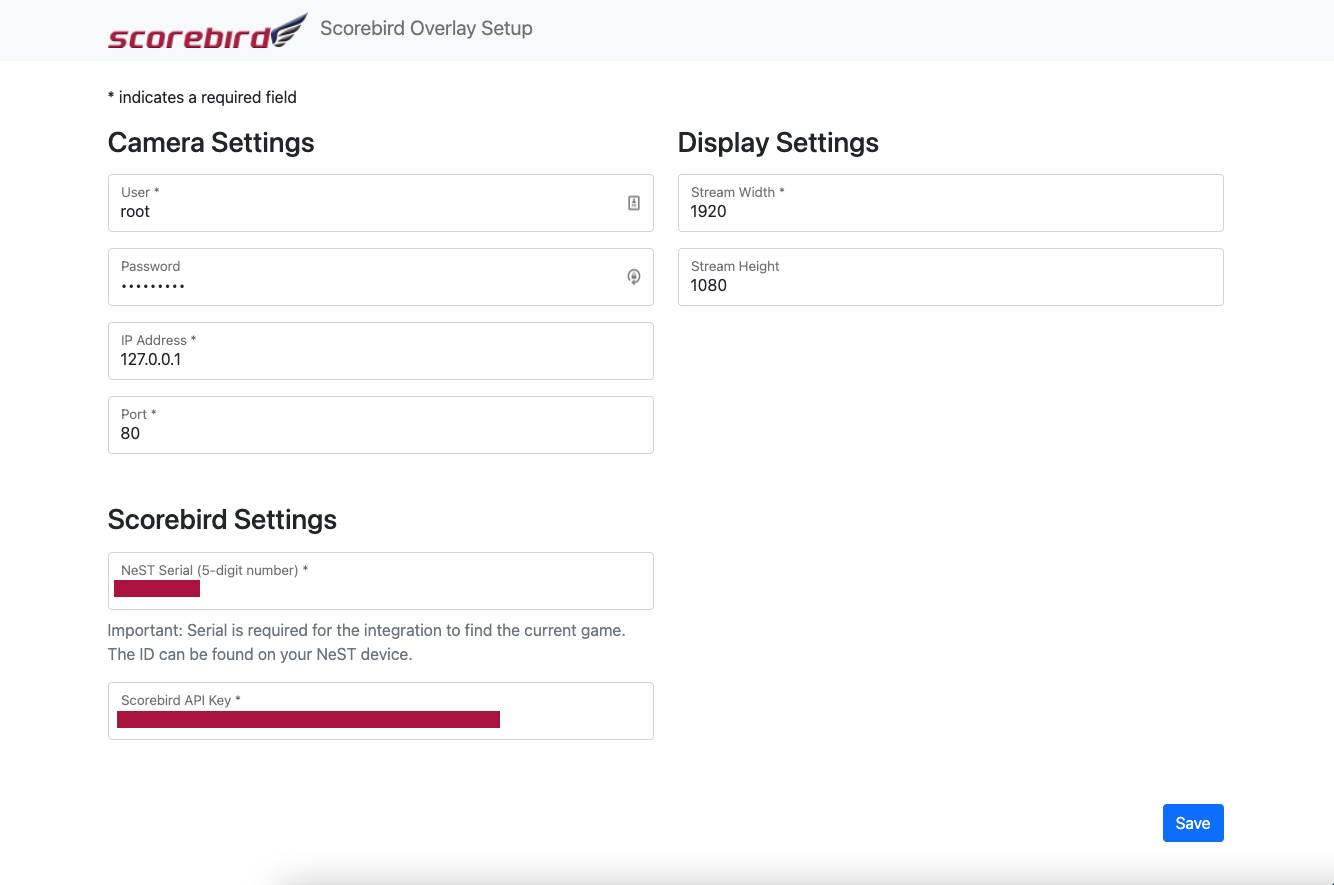
Click "Start" on the installed overlay, then click the gear icon to open its settings. Enter the following:
- API key — from your ScoreBird account
- NeST serial number — found on the NeST device or in the ScoreBird Admin app
- Sport type — select the sport being scored
- Product selection — choose your overlay style
Click "Populate View Areas" when done.
Step 6: Verify the Overlay
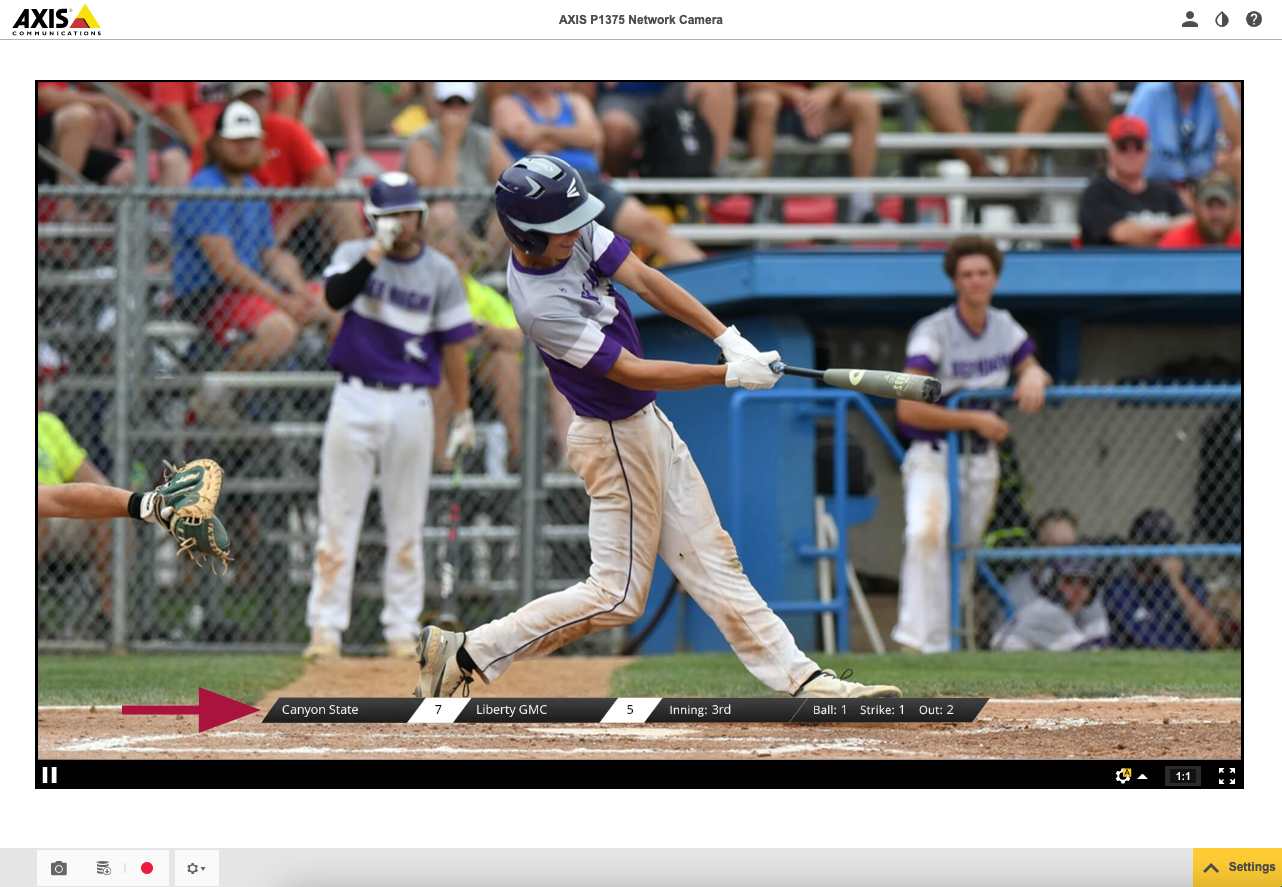
View your camera stream to confirm the overlay is appearing correctly on the output.
Step 7: Disabling the Overlay
To disable the overlay, toggle off the Scripter button in CamOverlay.
Important Notes
- Only 720p and 1080p streaming resolutions are supported.
- The overlay may appear off-center in the camera preview but displays correctly on live streams.
- Stop the overlay when not in use to prevent unnecessary network traffic.
Troubleshooting
- Overlay not appearing? Verify settings were saved and that your NeST device is powered on.
- API errors? Check the CamScripter logs for details and confirm your API key is correct.
- Wrong data showing? Confirm the correct sport type is selected.
- No data at all? Verify your NeST is assigned to a facility and that a game exists in the schedule.
- Need help? Contact support at support@scorebird.com or call 844-GOT-BIRD (844-468-2473).
Ready to Connect with CamStreamer?
Get ScoreBird set up with CamStreamer and start showing live scores today.