
TriCaster NDI via OBS Setup
Route ScoreBird overlays from OBS to TriCaster as an NDI source. This method lets you use OBS as a compositor and send a clean keyed overlay feed to TriCaster over your local network.
Requirements
- OBS Studio installed
- TriCaster on the same local network as the OBS computer
- Your overlay URL from the ScoreBird Portal
Step 1: Install the OBS NDI Plugin
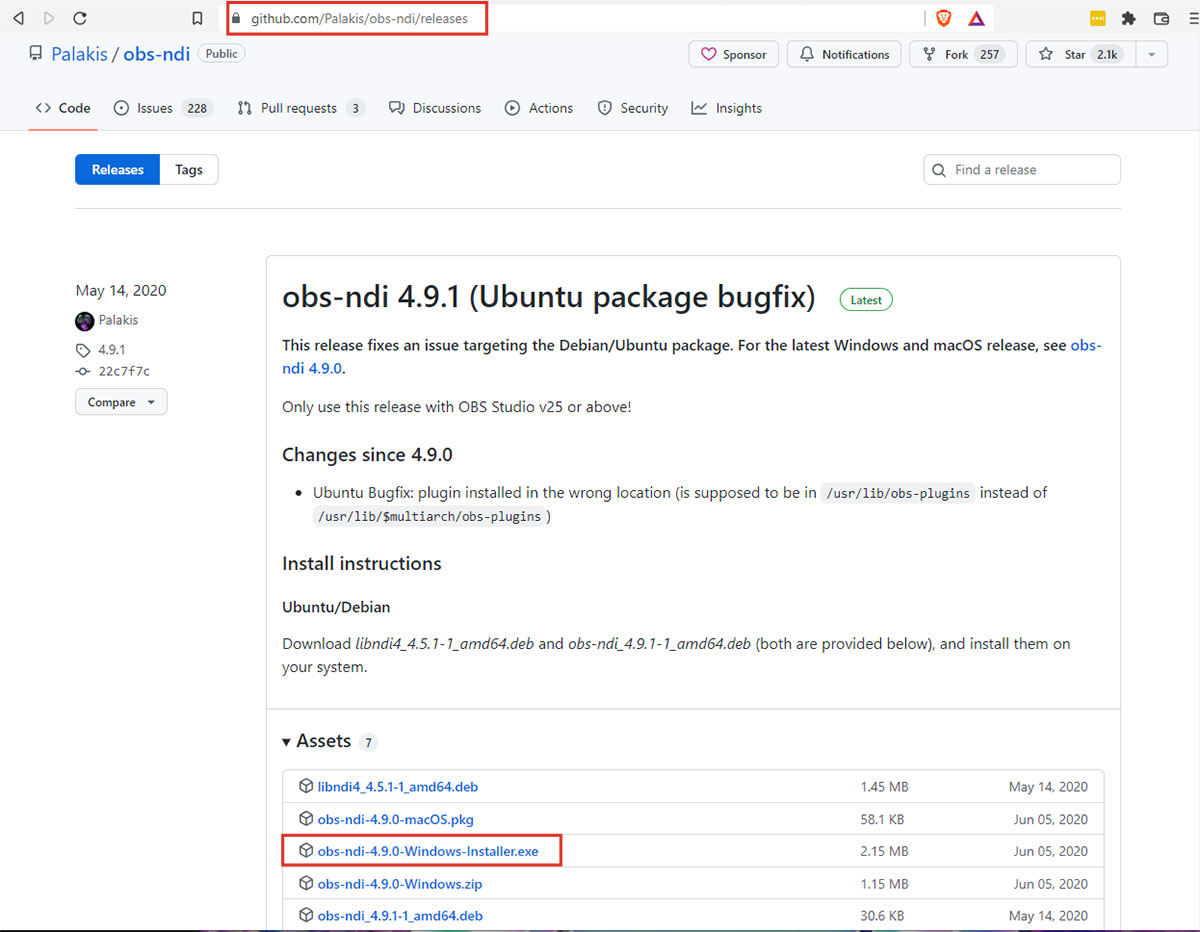
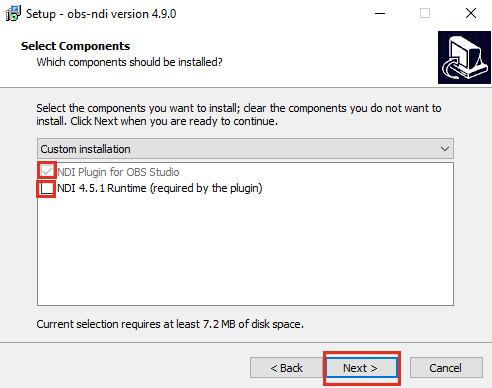
Download the OBS NDI Plugin from github.com/Palakis/obs-ndi/releases and run the installer.
A full computer reboot is required after installation before OBS will detect the plugin.
Step 2: Enable NDI Output in OBS
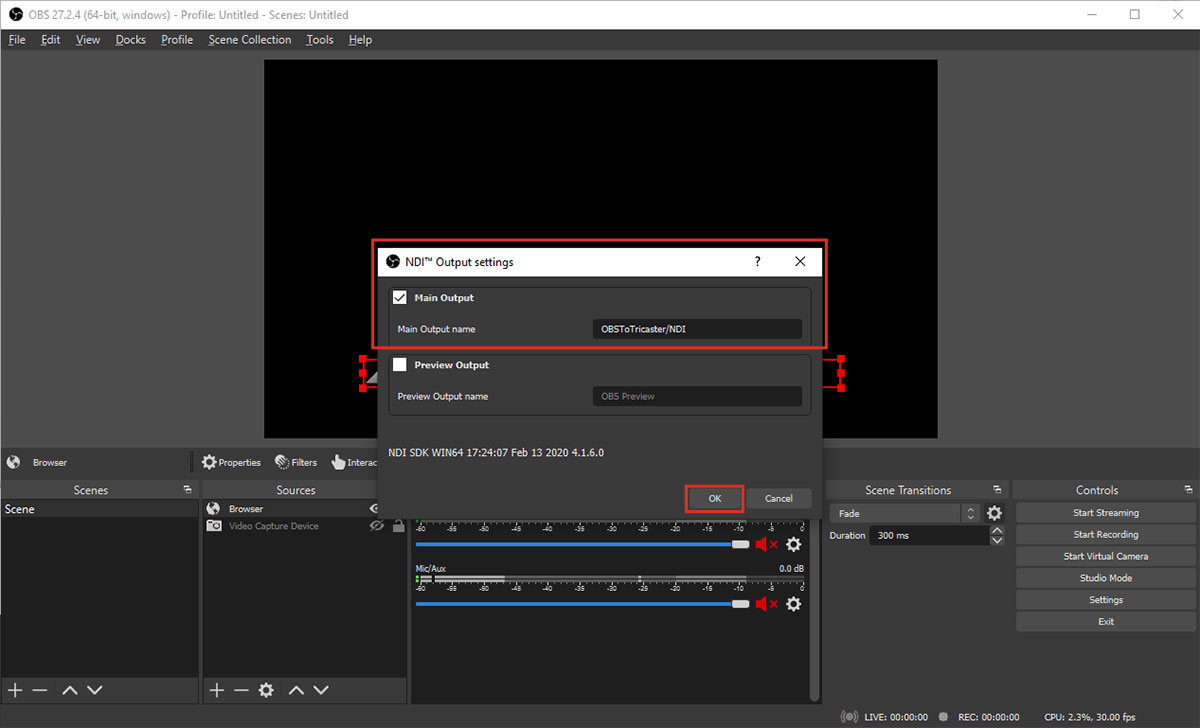
After rebooting, reopen OBS. Go to Tools > NDI Output Settings, enable "Main Output", and give the stream a name. Click OK.
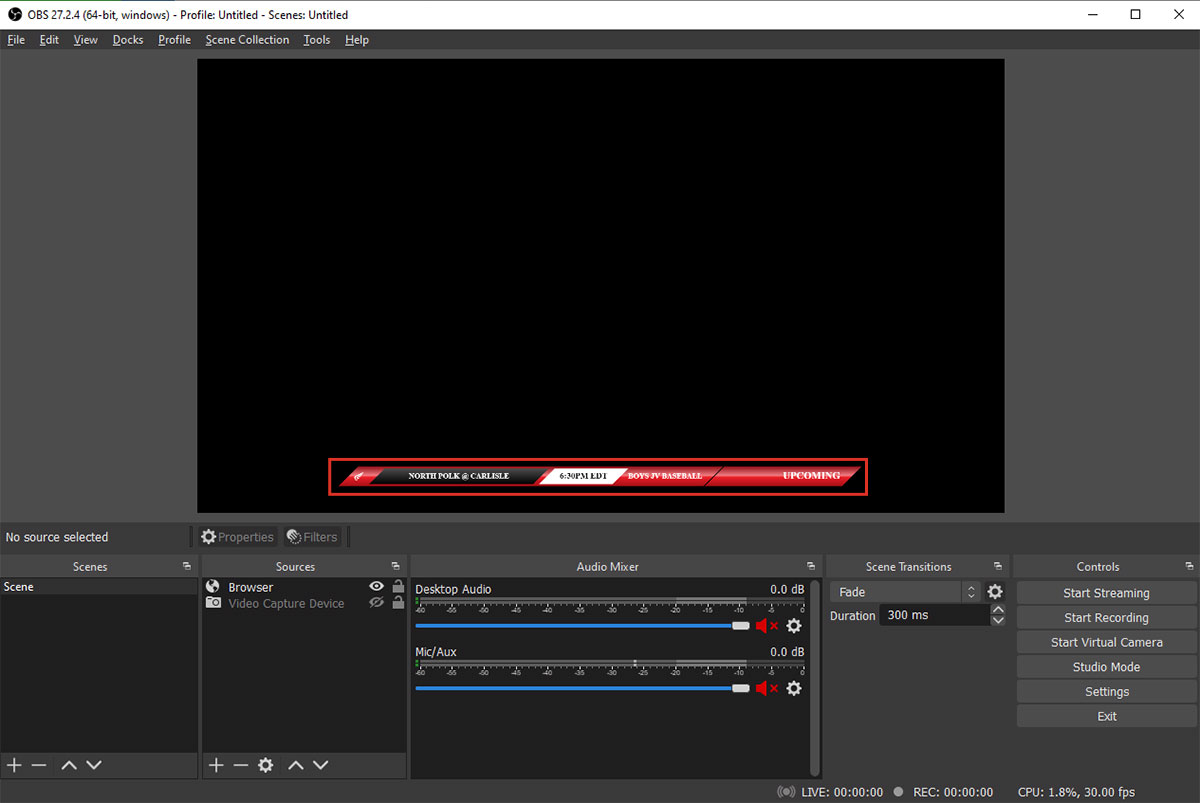
Step 3: Add ScoreBird as a Browser Source
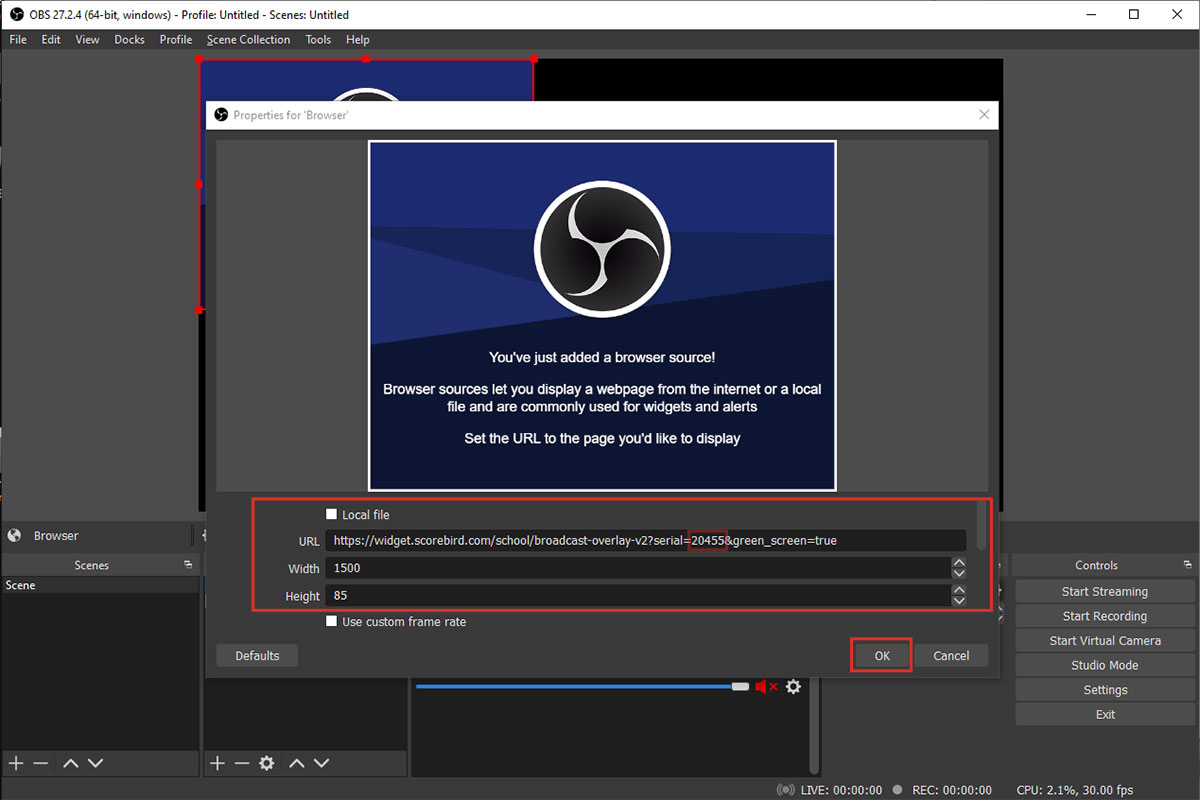
Add a new Browser Source in OBS and configure it as follows:
URL format:
https://widget.scorebird.com/school/broadcast-overlay-v2?serial=[YOUR_SERIAL]&green_screen=true
Replace [YOUR_SERIAL] with your NeST serial number. The green_screen=true parameter sets the background to green for chroma keying.
Dimensions: Set width to 1500px and height to 85px.
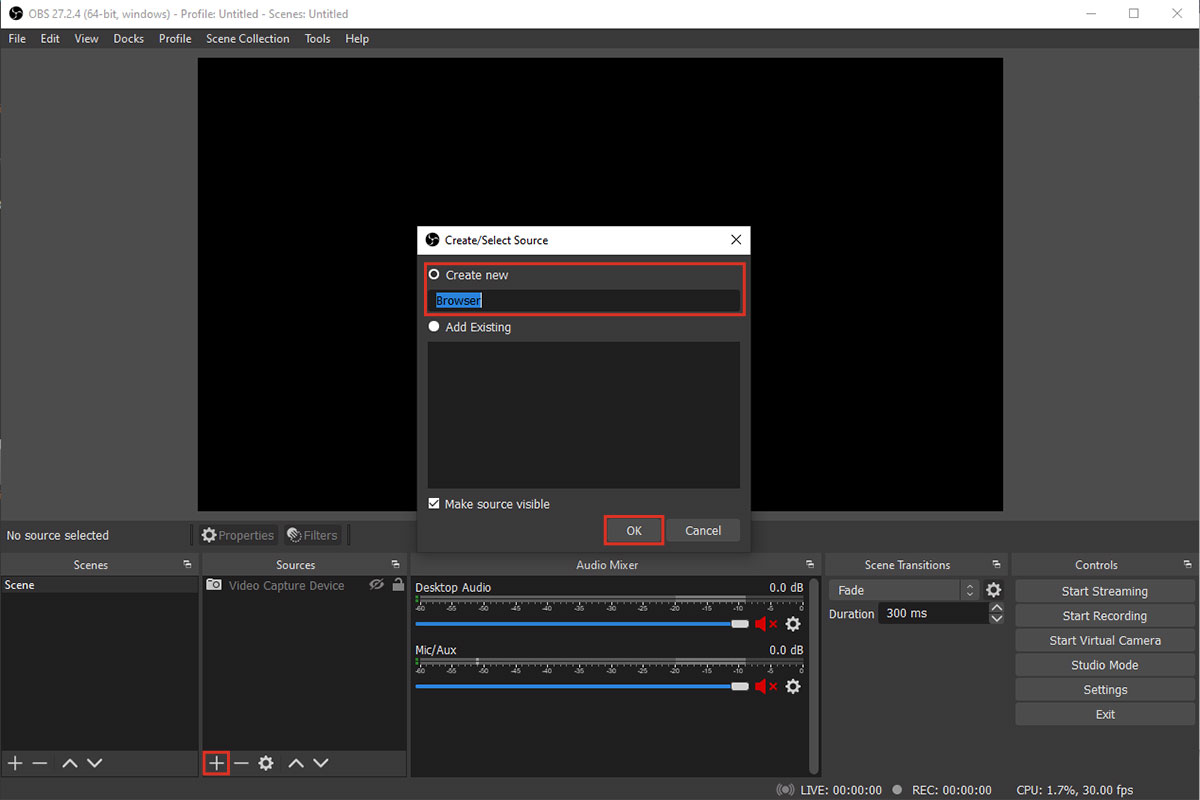
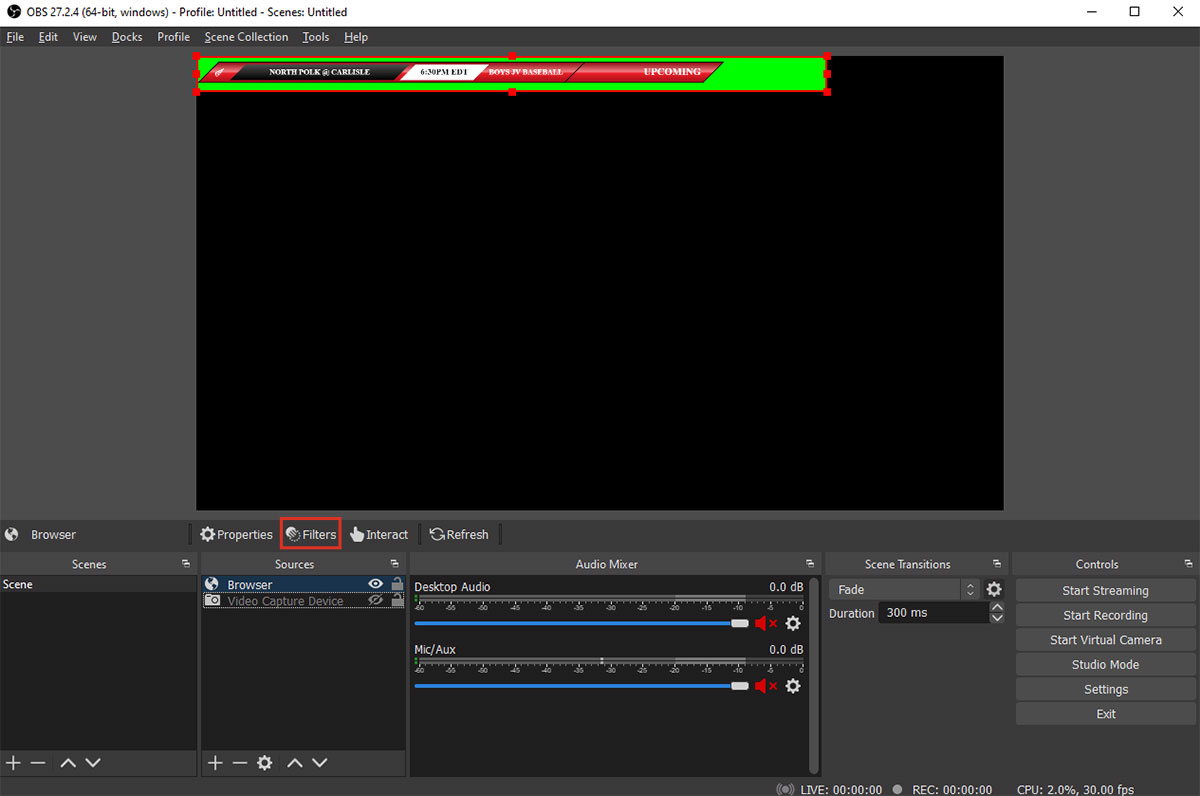
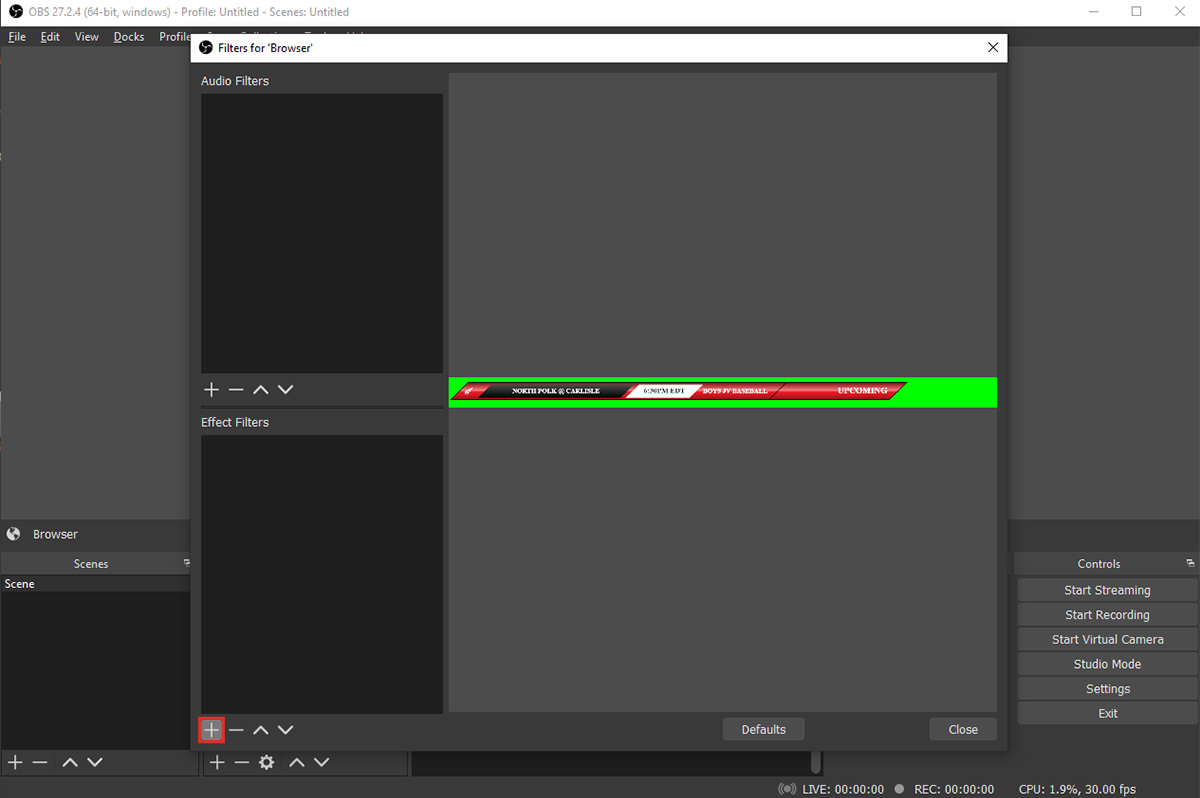
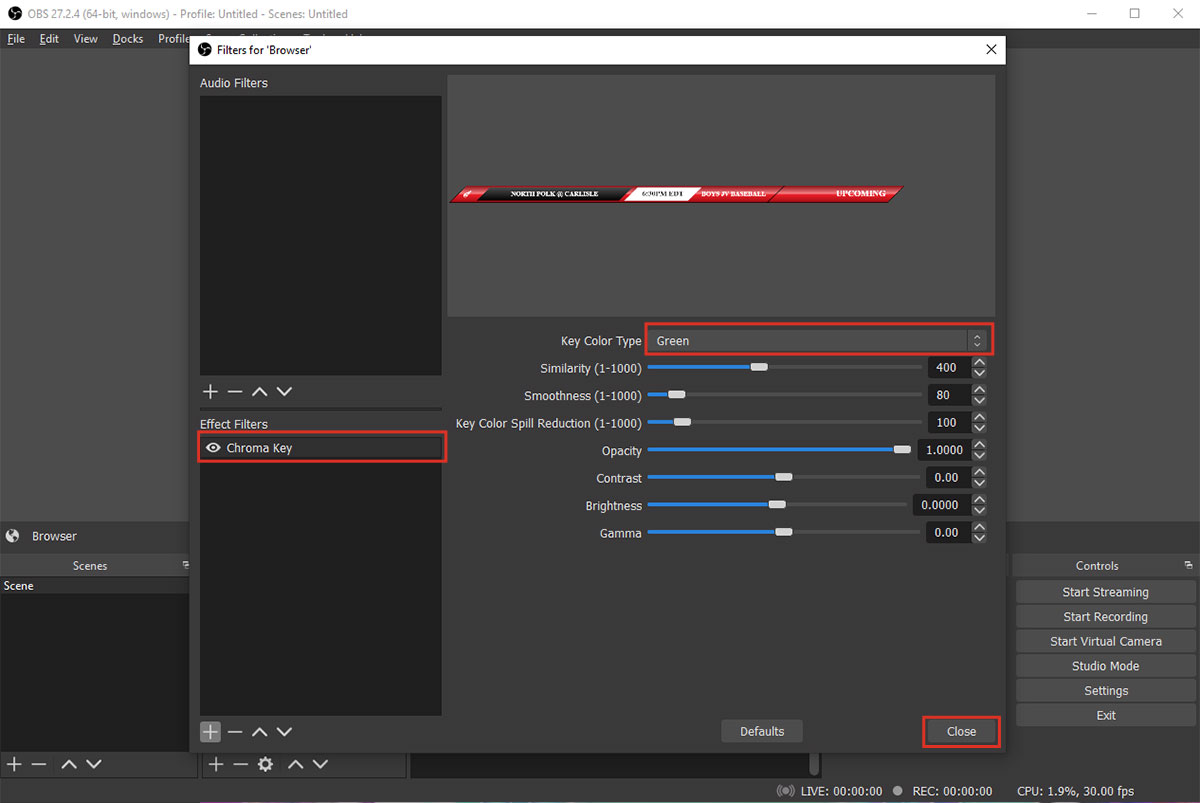
Next, apply a Chroma Key filter to the browser source. Right-click the source, select Filters, add a Chroma Key filter, and set the key color to green.
Step 4: Configure TriCaster to Receive the NDI Stream
In TriCaster, add the OBS NDI output as a network source. Select the named NDI stream you configured in Step 2. The ScoreBird overlay will appear as a keyed input ready to use in your TriCaster production.
Troubleshooting
- NDI output not visible in TriCaster? Confirm OBS is running with NDI Output enabled and both machines are on the same local network.
- Plugin not appearing in OBS Tools menu? Reboot the computer — reboot is mandatory after NDI plugin installation.
- Green background still showing? Verify the Chroma Key filter is applied to the browser source and the key color is set to green.
- Score not updating? Ensure a game is active in your ScoreBird schedule and your NeST device is online.
- Need help? Contact support at support@scorebird.com or call 844-GOT-BIRD (844-468-2473).
Ready to automate your scores?
NeST connects to your scoreboard and powers everything you just read about.